

Using TransBuds C2 on macOS
❗️ Requires an Apple Silicon (M-series) Mac running macOS 15.0 or later.
1. Download the App
2. Connection & Setup
Start with this video for the C1 / C2 connection workflow on macOS.

Before starting translation, set both your Mac's audio input and output to kikago.ai enc headphone.
3. Getting Started
Translation Modes
C2 supports the following 4 translation modes on macOS. Select one on the App Home screen to get started.
| Mode | Best For |
|---|---|
| Call Translation | Real-time translation for system calls, Skype, WhatsApp, Zoom, and more |
| Meeting Transcription | Transcription and translation for Zoom, Teams, and in-person meetings |
| Video Translation | Real-time translation for foreign-language videos, news, and courses |
| Live Interpretation | Understanding nearby conversations while traveling, working, or attending events |
Languages & Voice
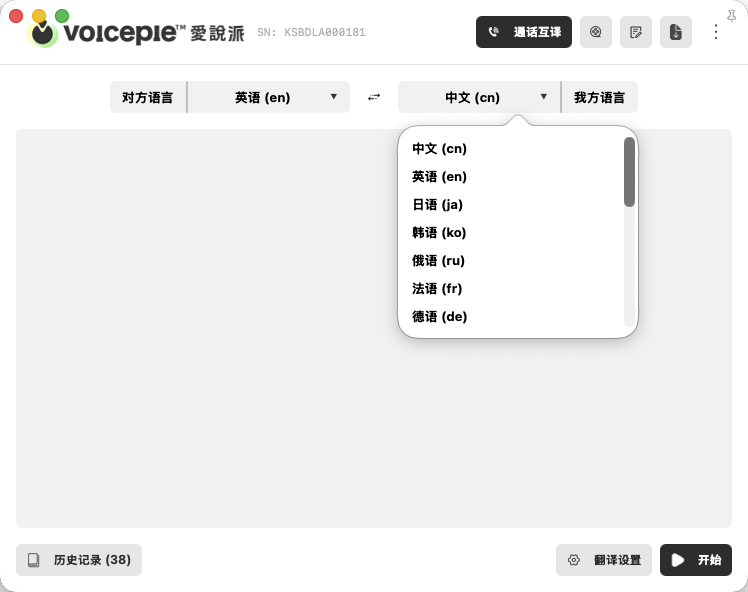
After opening a translation mode, choose the other person's language and your language. Use the swap button between them to reverse the language direction.
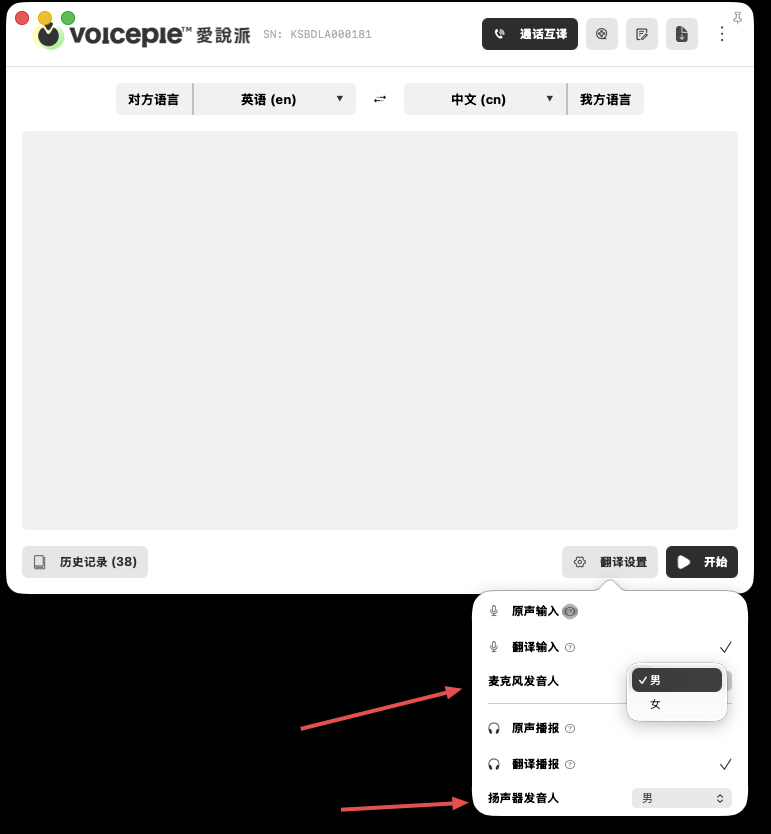
Open Translation Settings in the lower-right corner, then choose voice tones for microphone and speaker playback.
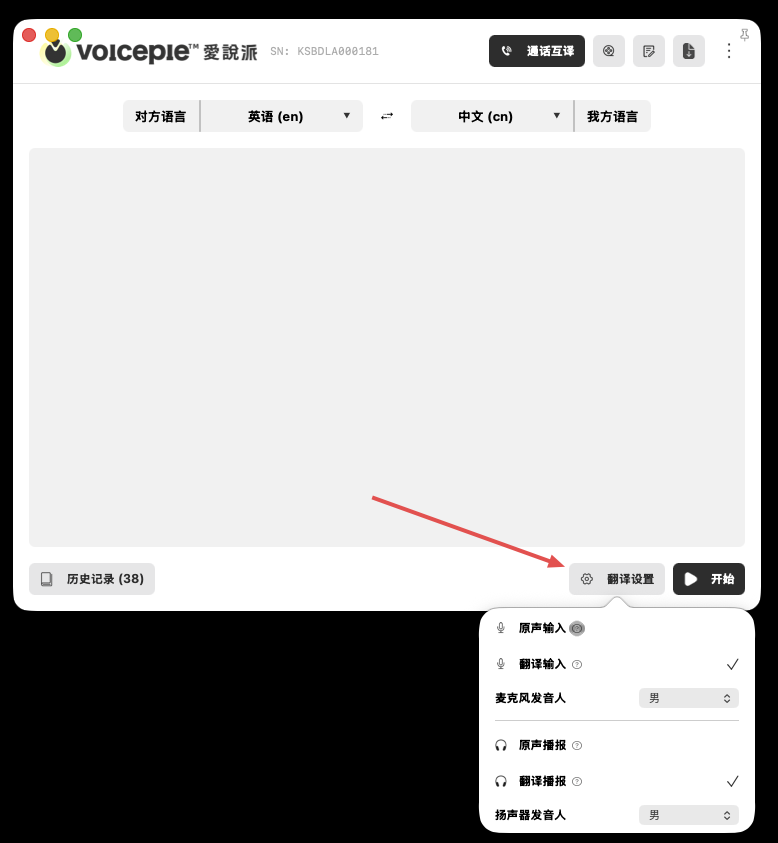
Playback Settings
Choose the original and translated audio inputs and playback options for your scenario. You can also change the speakers and playback speed.
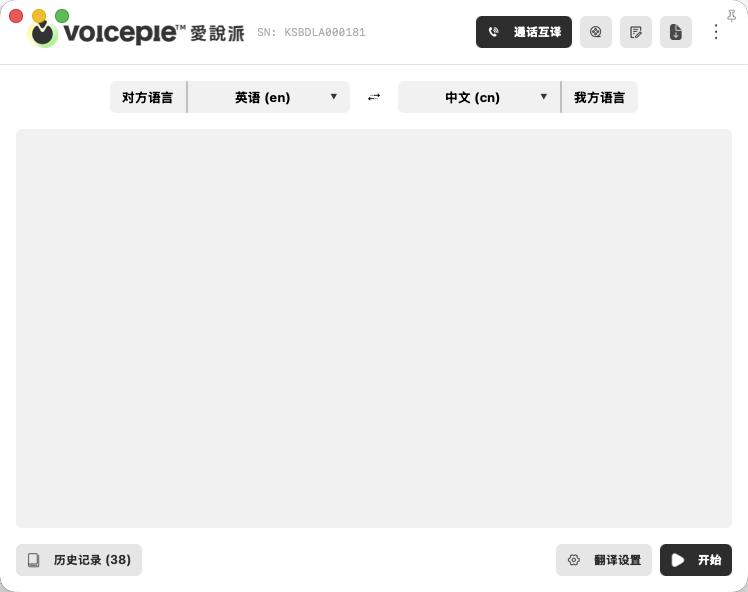
App Main Screen
Use the main screen to choose both languages, switch translation modes, view history, and start translating.
4. FAQ
macOS-specific
Q: No sound on MacBook, or translation isn't working?
A: You need to set your Mac's system audio I/O to the voicepie device:
- Open System Preferences → Sound
- Set Input device to
kikago.ai enc headphone - Set Output device to
kikago.ai enc headphone - Restart voicepie
Full details: No Sound on macOS
Q: Can I use voicepie on Intel Macs?
A: Requires an Apple Silicon (M-series) Mac running macOS 15.0 or later — Intel Macs are not supported.
General
Q: Translation isn't accurate — what can I do?
A: A few common culprits:
- Media volume too low: voicepie picks up audio less clearly. Turn it up.
- Noisy environment: Move to a quieter spot, or speak closer to the mic.
- Speaking too fast or talking over each other: Slow down a bit, wait your turn, break long sentences into chunks.
- Accent or unclear pronunciation: Use standard speech where possible, avoid slang, repeat important info if needed.
- Specialized terminology: Use more common words where possible. For critical terms, run them through translation alone first to confirm.
Still stuck? Check the full FAQ →