

Using TransBuds O2 on Android
1. Download the App
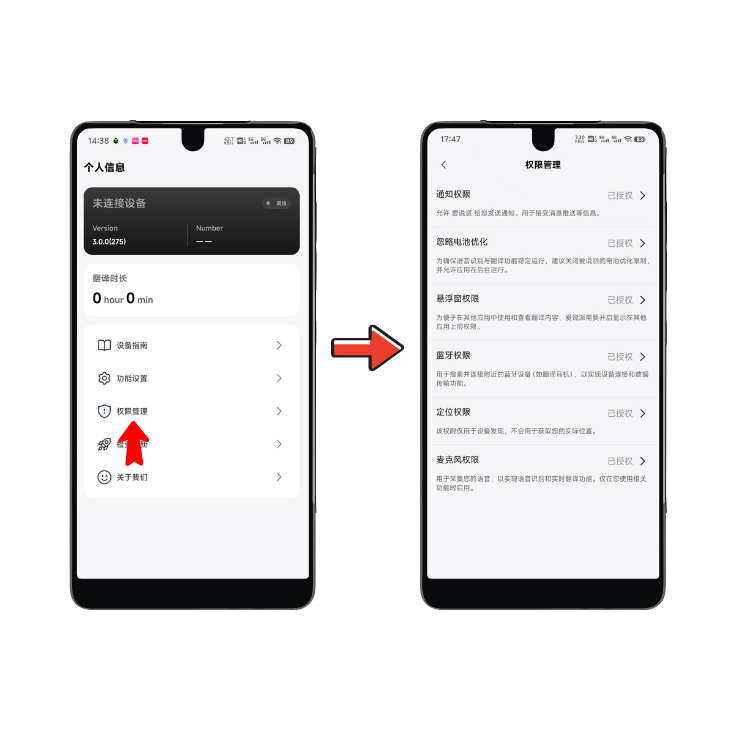
2. Grant Permissions
When opening voicepie for the first time, please enable the following permissions in order — skipping any may affect your experience.
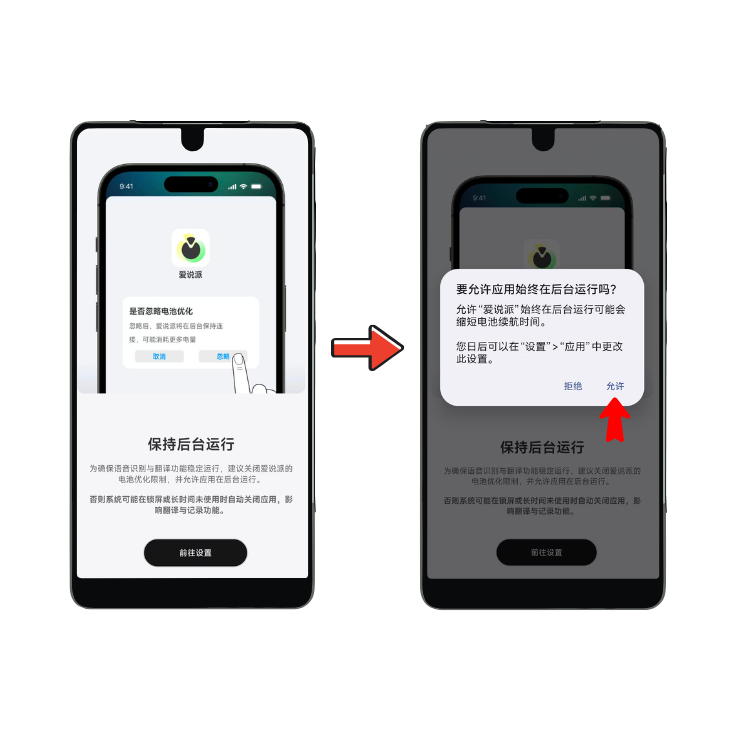
Add voicepie to your "Ignore Battery Optimization" list.
Android may automatically close background apps when the screen is locked or the phone idles for long periods — this can interrupt translation or lose your conversation history. Disabling battery optimization keeps voicepie running smoothly in the background.
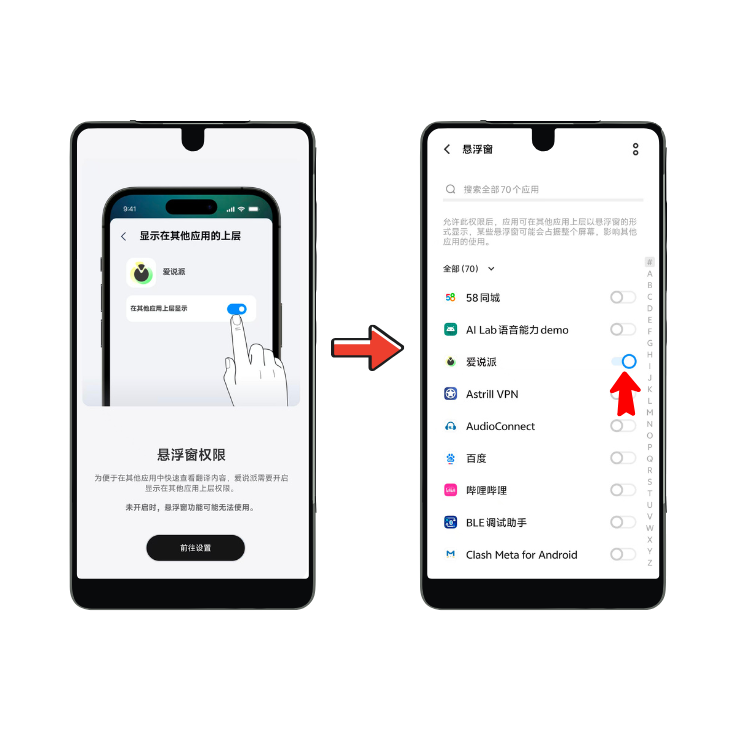
Let voicepie show its floating widget on top of other apps.
The floating widget is what makes voicepie work inside WeChat, TikTok, phone calls, or any other app — one tap to call up translation, no app switching needed.
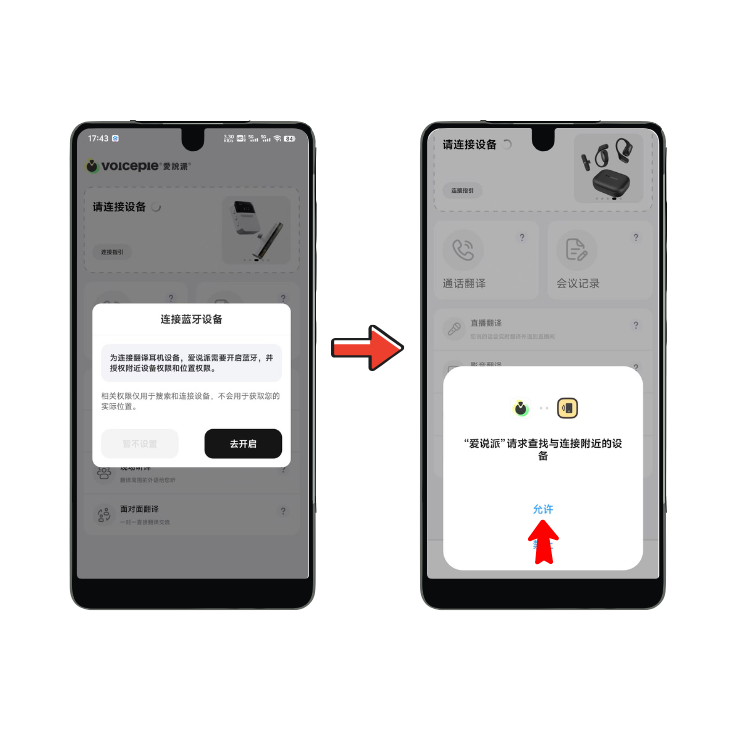
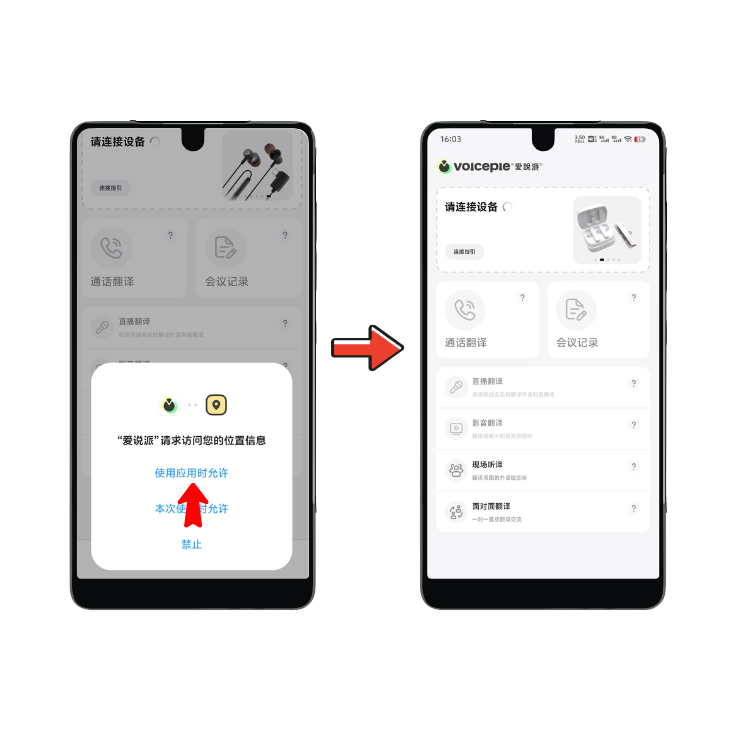
Includes Nearby Devices, Location, and Bluetooth — all three are required.
voicepie translation devices connect over Bluetooth, so these permissions are needed to discover and pair your device. They're only used for device connection, nothing else.
Not sure if everything's enabled? Open My Profile → Permission Manager in the app to check all permissions at a glance.
3. Connect Your Device
4. Getting Started
Translation Modes
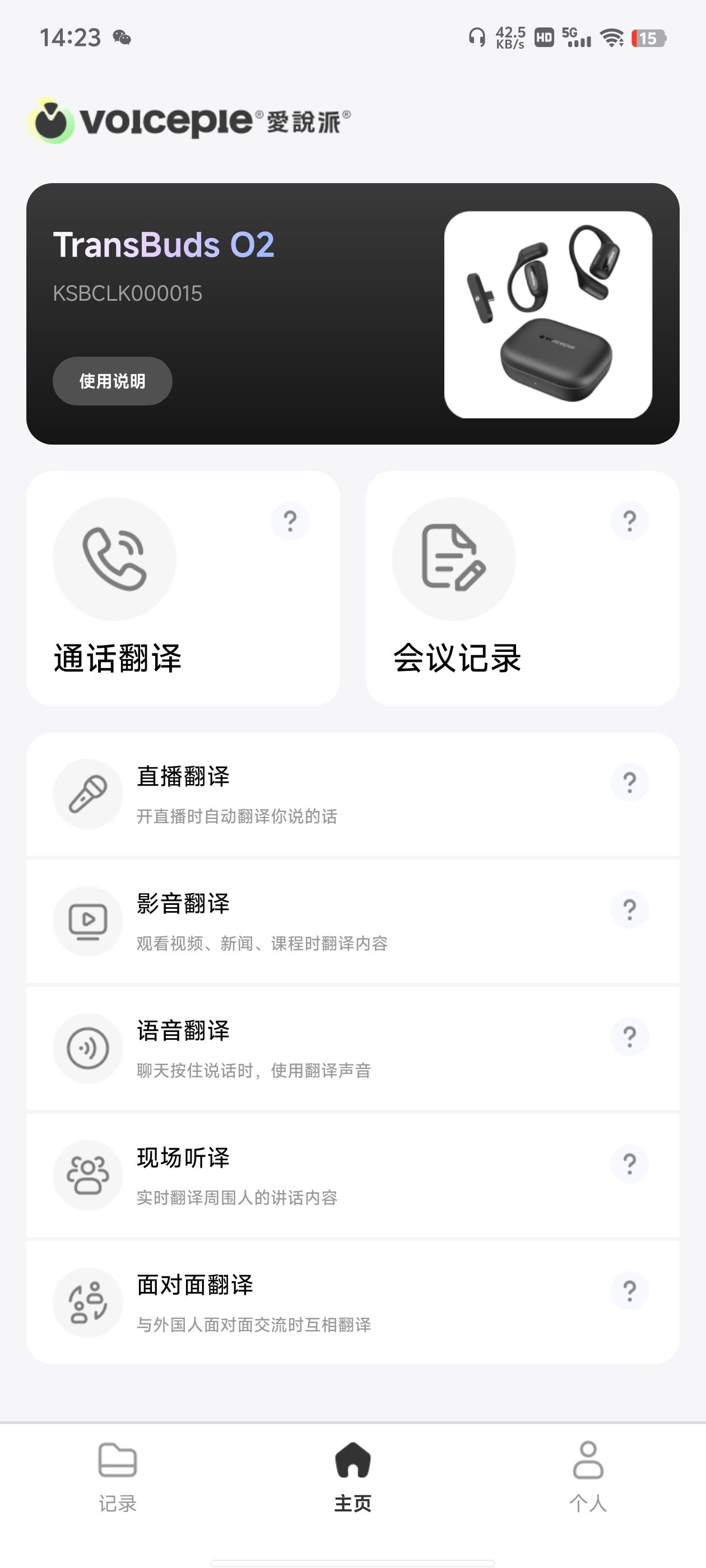
O2 supports 6 translation modes — tap one on the app home screen or floating widget.
Call Translation
Translate both sides of phone calls and conversations in Skype, WhatsApp, Zoom, and other calling apps in real time.
Meeting Transcription
Transcribe and translate remote meetings in Zoom or Teams, as well as conversations in on-site meetings, so they are easier to follow and review.
Video Translation
Translate foreign-language videos, news, and podcasts on YouTube, Netflix, and other media apps in real time.
Livestream Translation
Translate livestream audio on YouTube, Twitch, TikTok, and other platforms to connect with audiences across languages.
Live Interpretation
Understand conversations around you during international travel, business visits, and exhibitions with real-time interpretation.
Face-to-Face Translation
Have two-way conversations with international clients and friends using either of the two button-control options.
Two-Button Controls
Single-Button Controls
App Home & Device Status
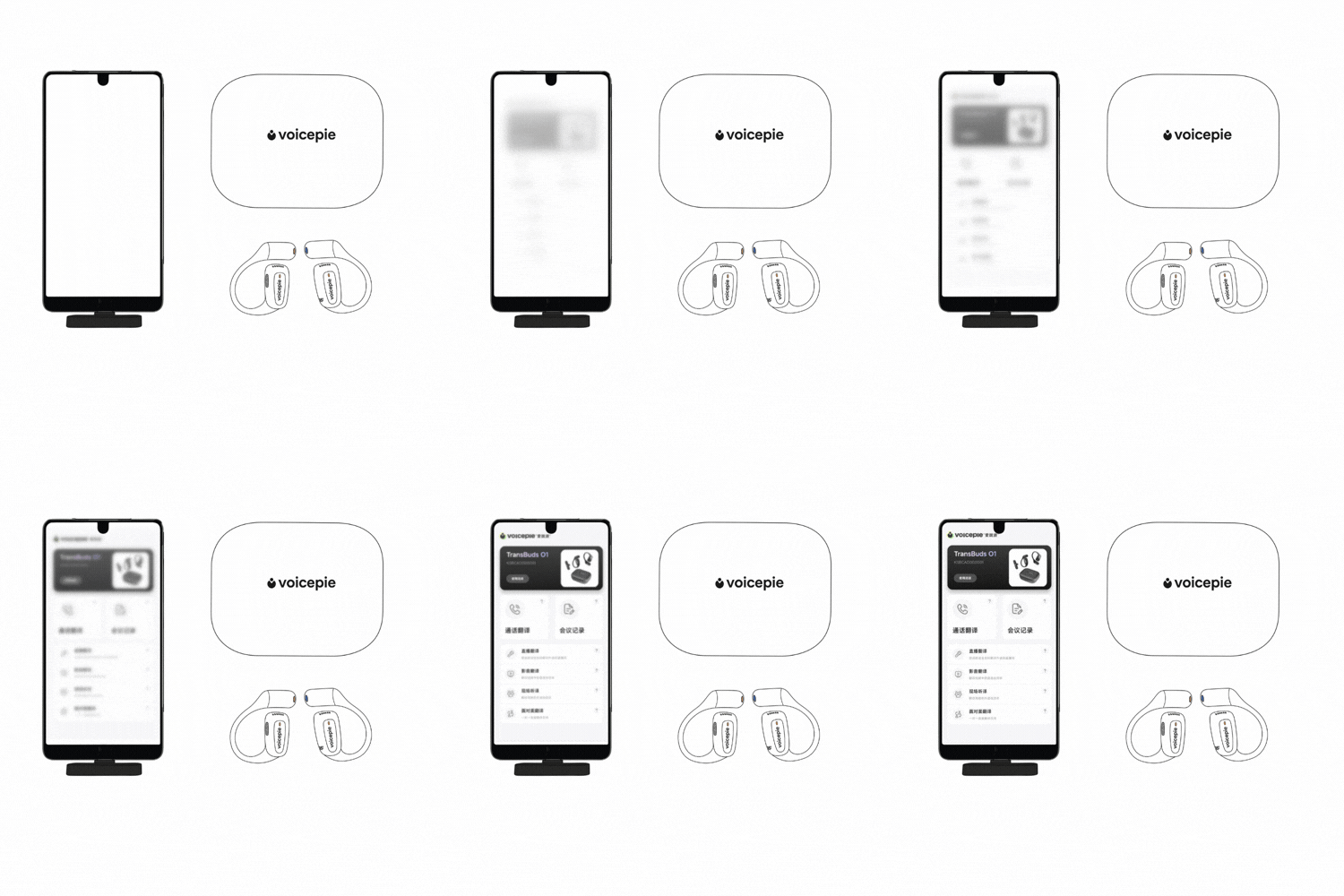
Once connected, the TransBuds O2 device card and device number appear at the top of App Home. Check that the device details are correct, then choose a translation mode.
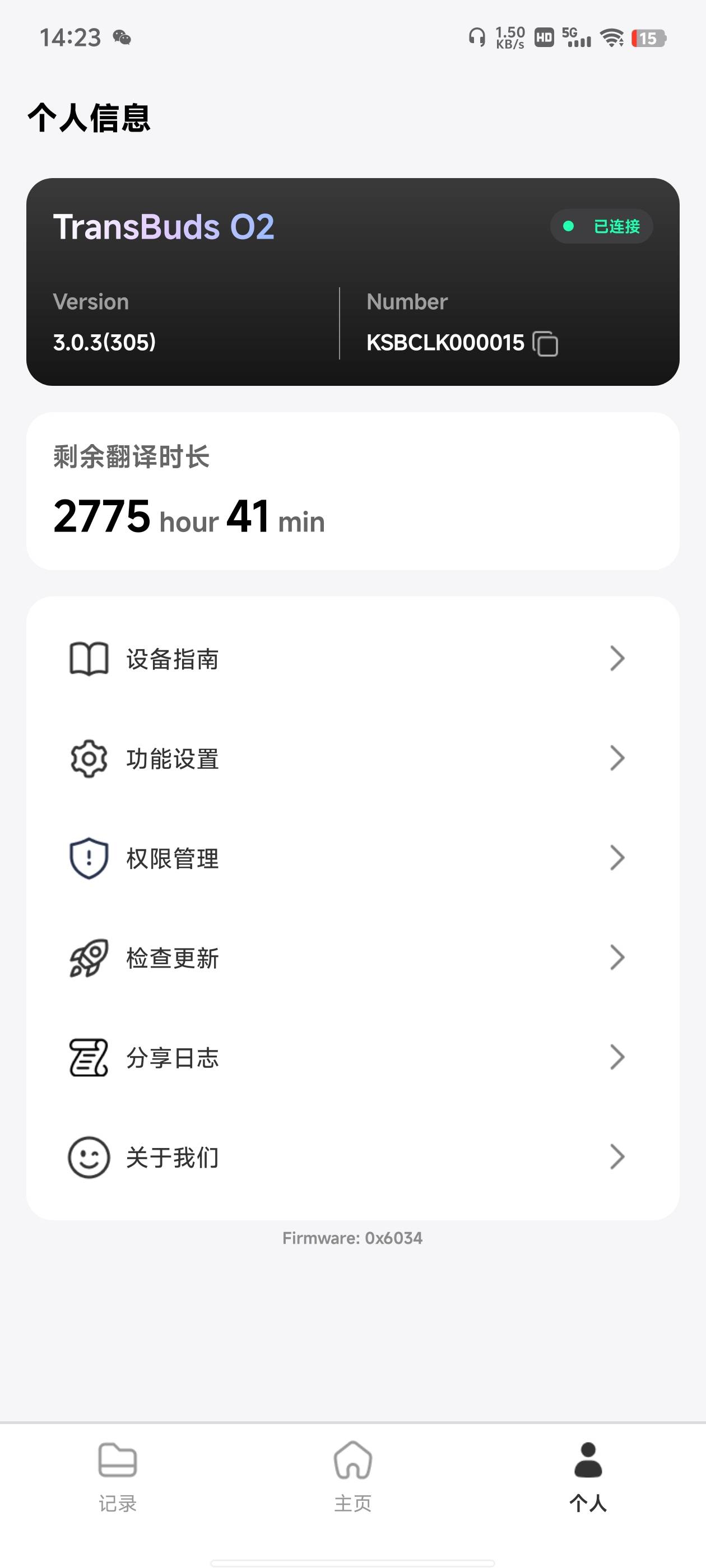
Open My Profile to confirm the O2 connection status, version, and device number.
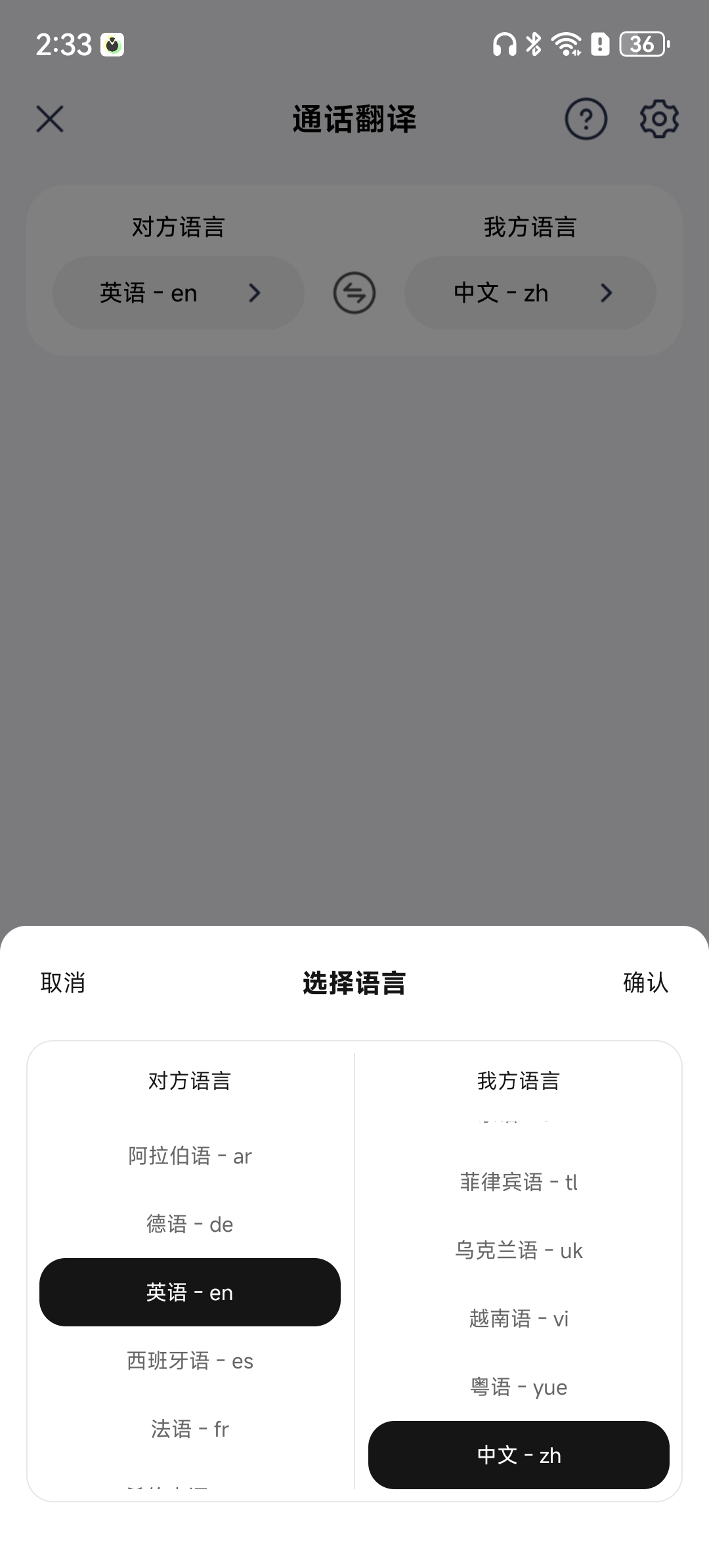
Languages & Voice
After opening Call Translation, Meeting Transcription, Livestream Translation, Video Translation, Live Interpretation, or Face-to-Face Translation, select your language and the other person's language. Choosing the wrong language will reduce recognition and translation accuracy.
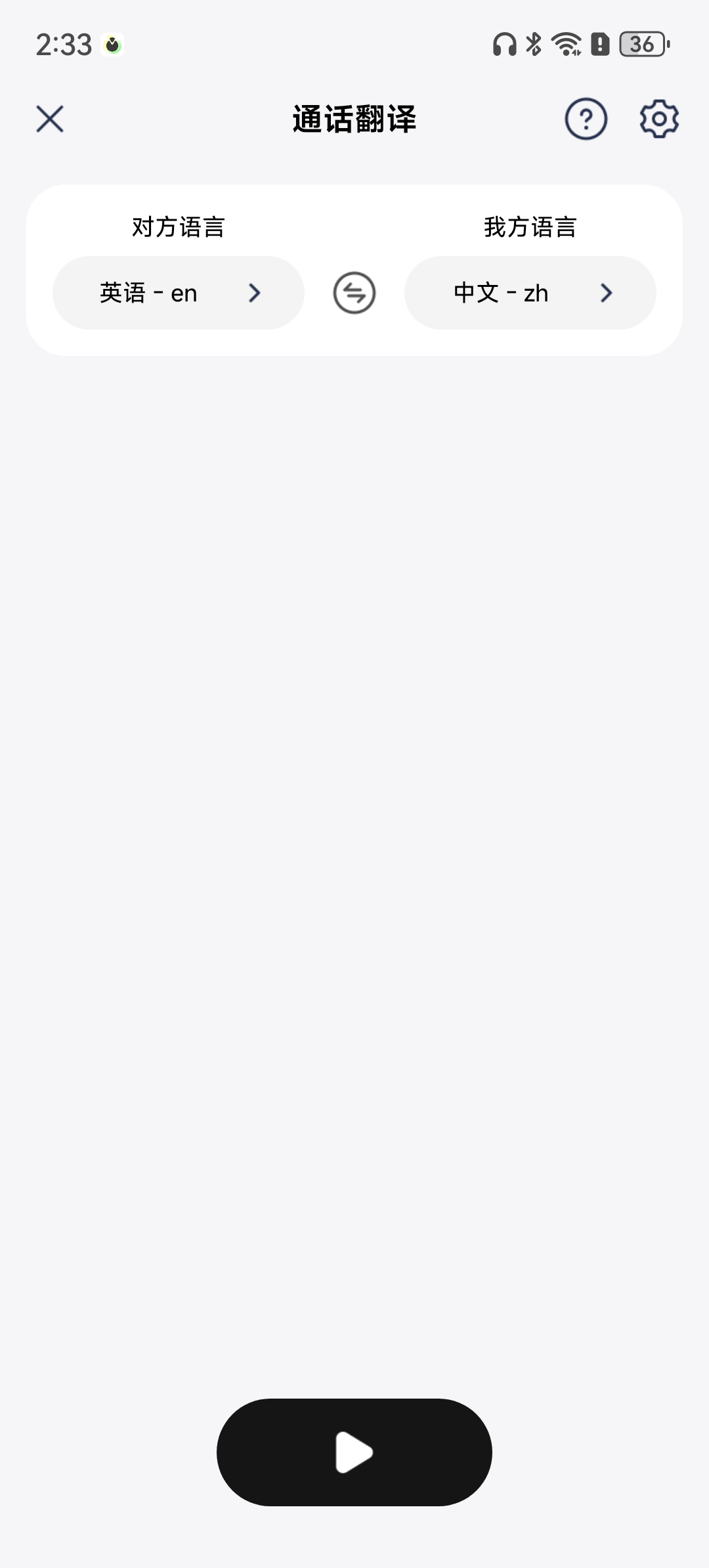
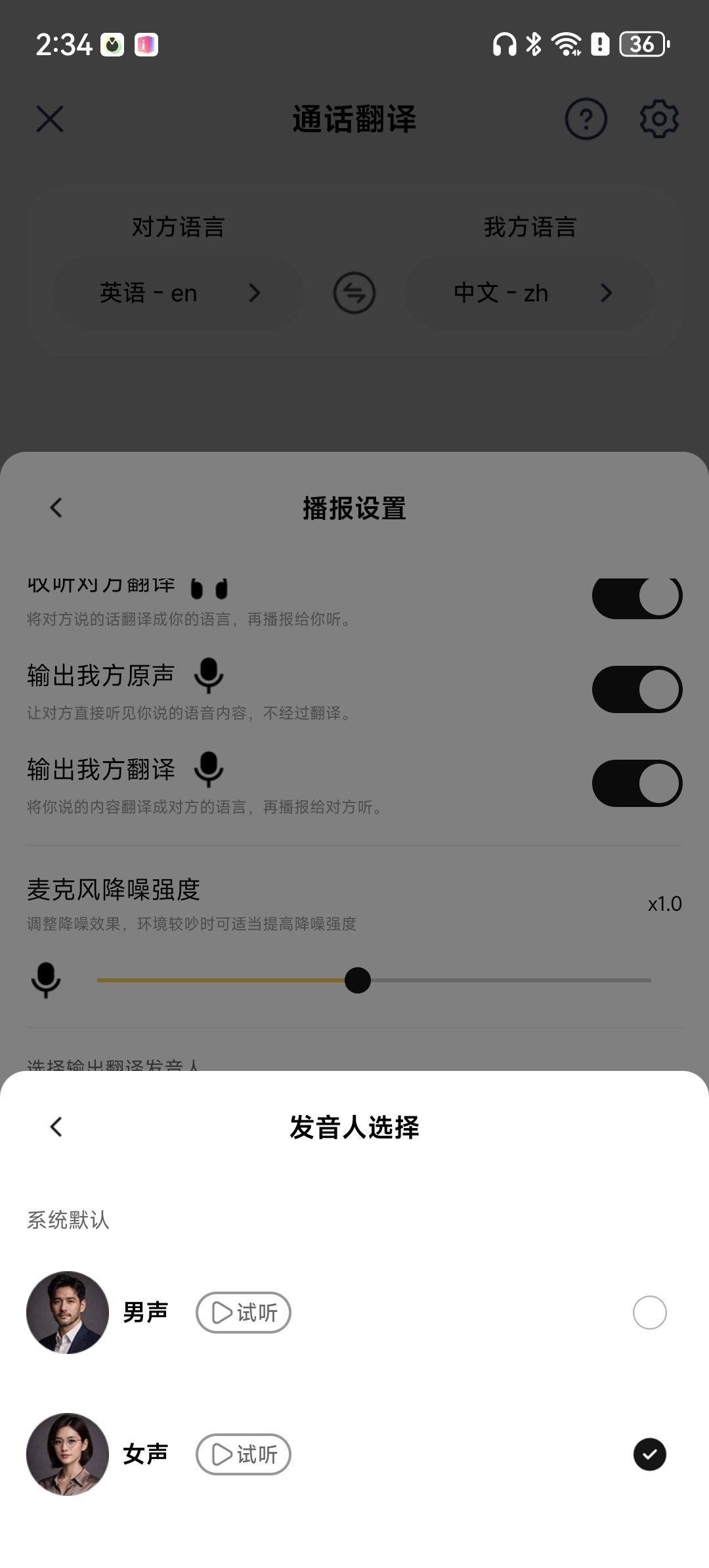
After entering a translation mode, tap the settings button in the top-right corner to open Playback Settings.
Choose the voice used to play translated speech. You can use a male or female voice, or contact us for a custom voice through .
TIP
The standard version includes 19 languages. Contact support if you need additional paid language services.
Playback Settings
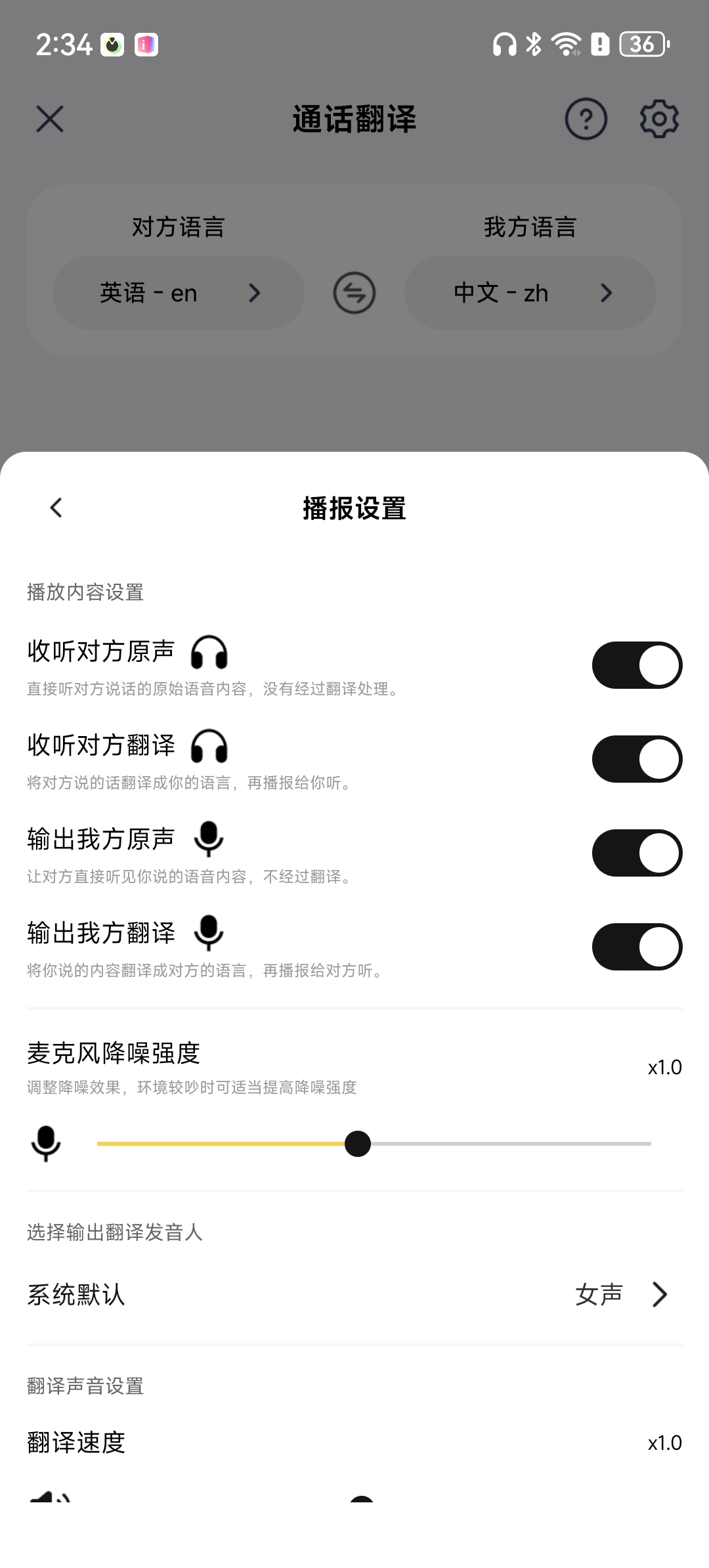
Playback Settings control who hears the original speech and who hears the translation. For your first use, keep the default options and make sure Output My Original Voice is turned off to prevent your original speech from being played twice.
Different translation modes show different playback options. Follow the short description beside each option. If you cannot hear translated speech, return here and check that the relevant playback option is enabled.
Floating Widget & App Home
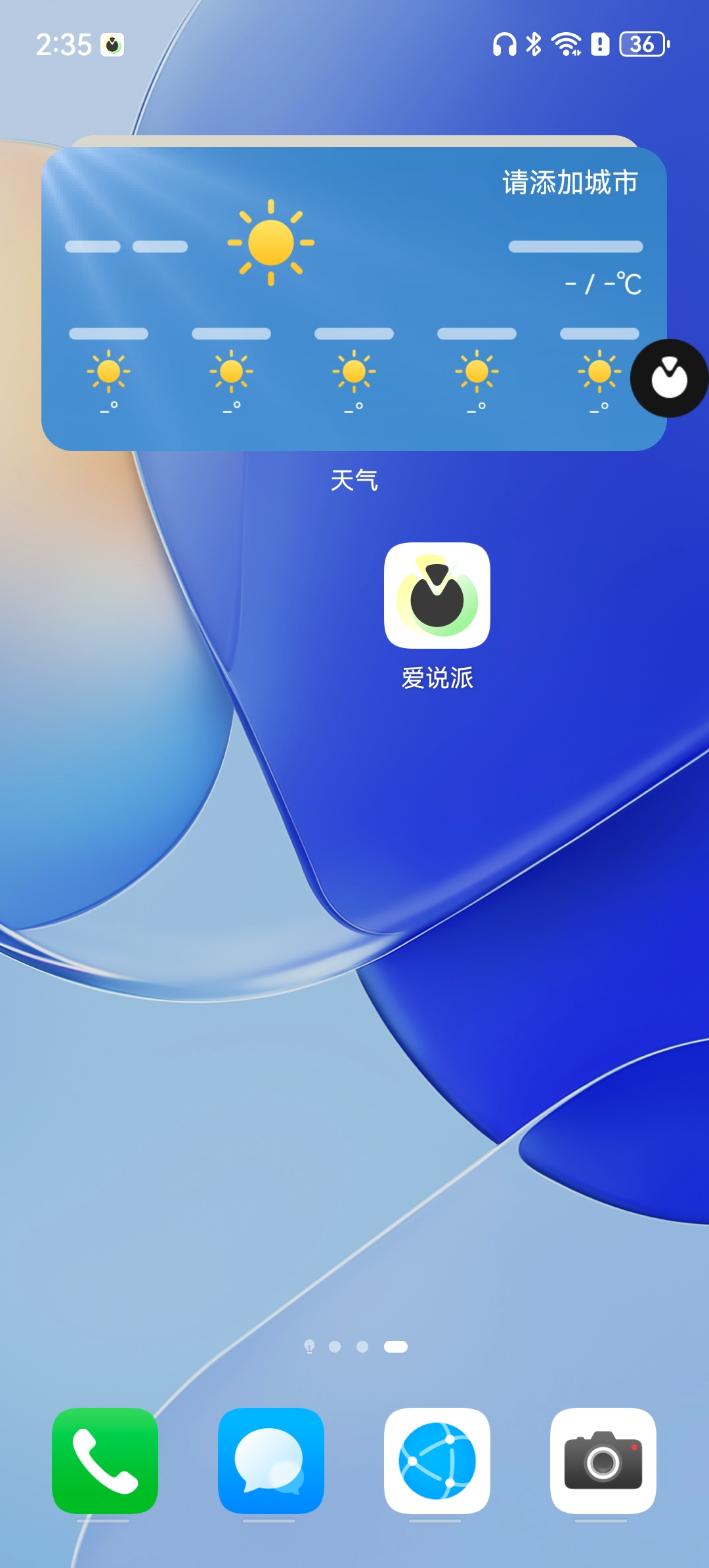
After allowing Display Over Other Apps on Android, the Floating Widget appears over other apps whenever your device is connected.
Tap it inside the Phone app, WeChat, Douyin, a browser, or another app to start translating without returning to the voicepie App Home.
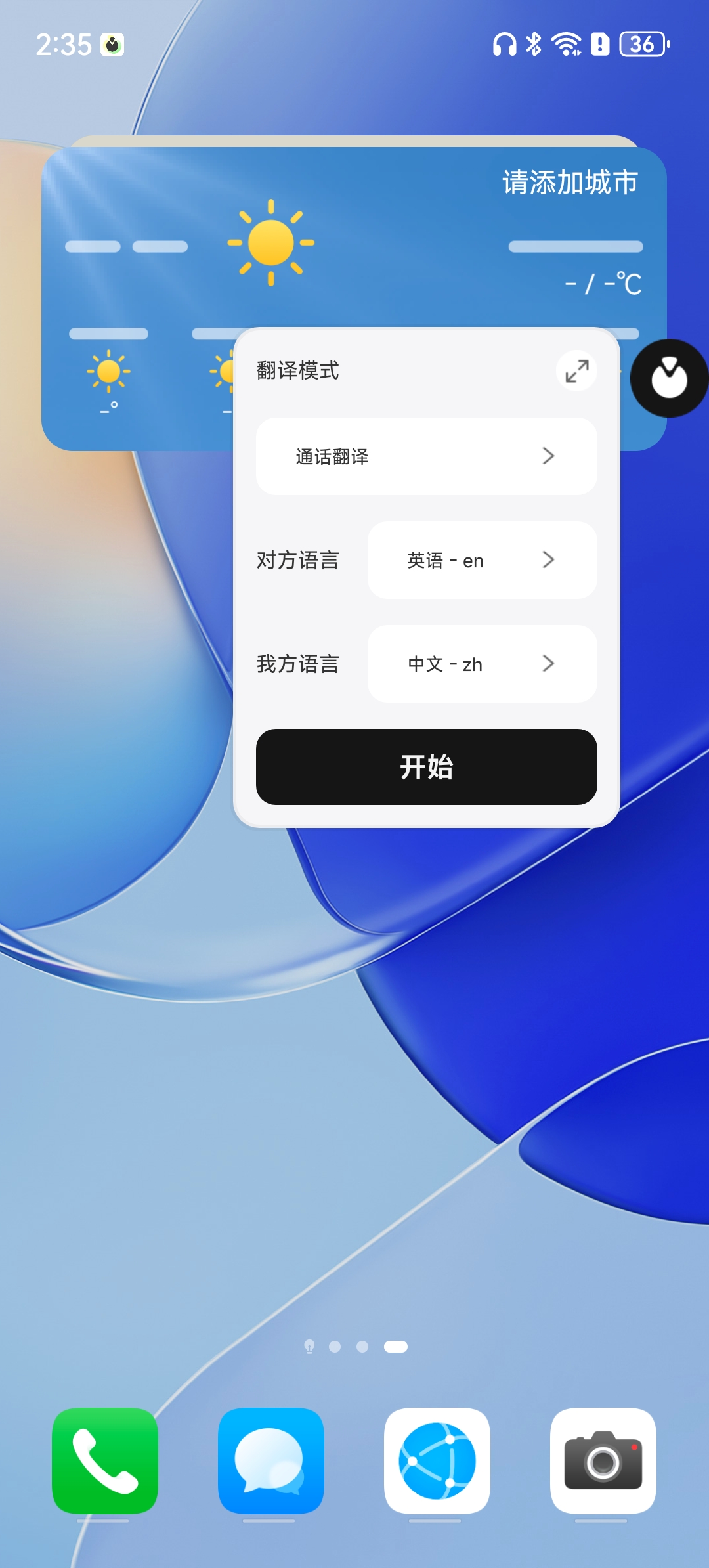
Tap the Floating Widget to expand it. You can view translated text, switch modes, or pause translation without leaving your current app — useful during calls, livestreams, and videos.
5. FAQ
Android-specific
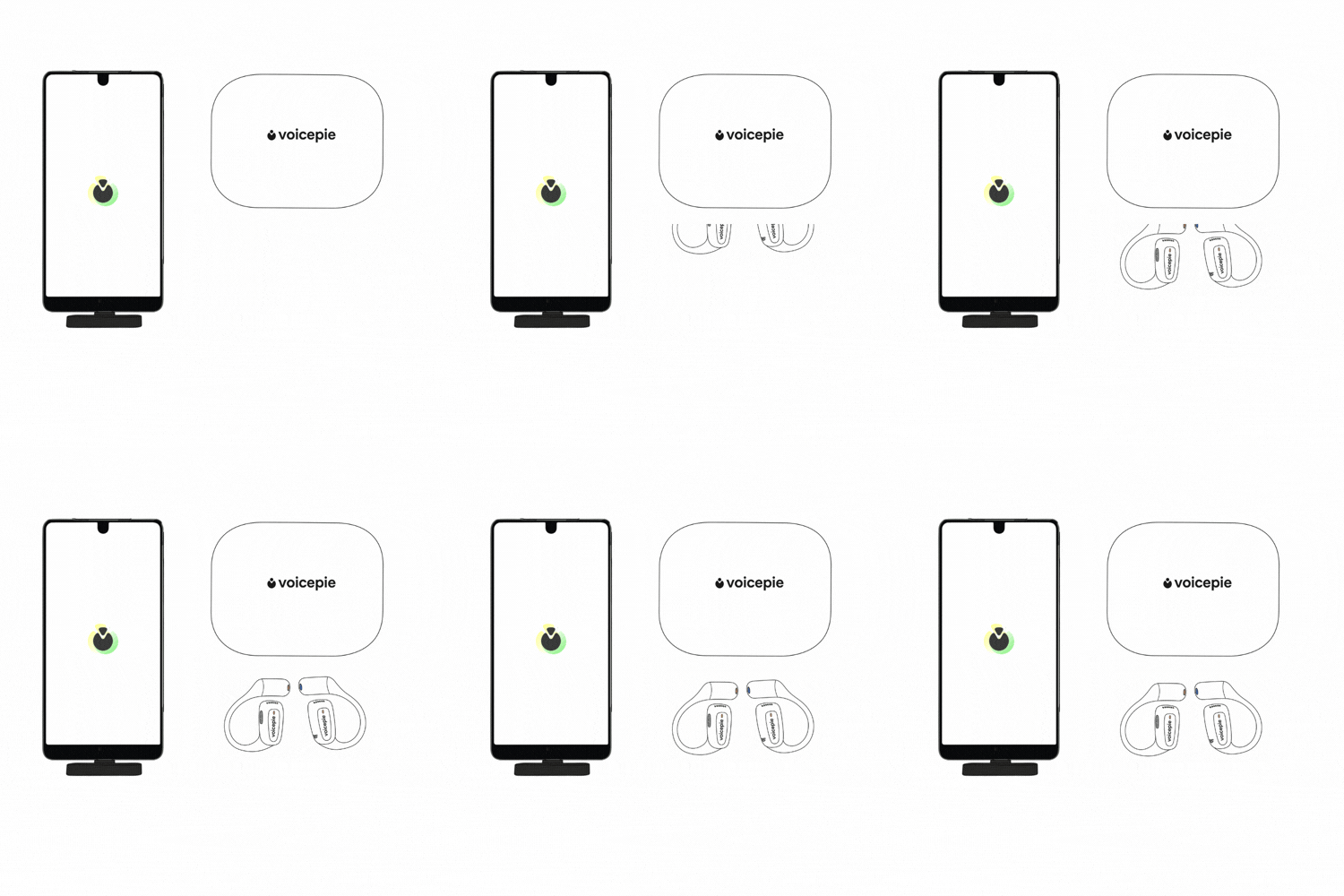
Q: Dongle's blue light keeps blinking and won't turn purple?
A: Means the Dongle hasn't paired with the earphones yet:
- Confirm the O2 earphones are powered on
- Move them closer to the Dongle (within 1 meter)
- Wait a few seconds for the Dongle's light to turn purple
Still no luck? Reach out to support.
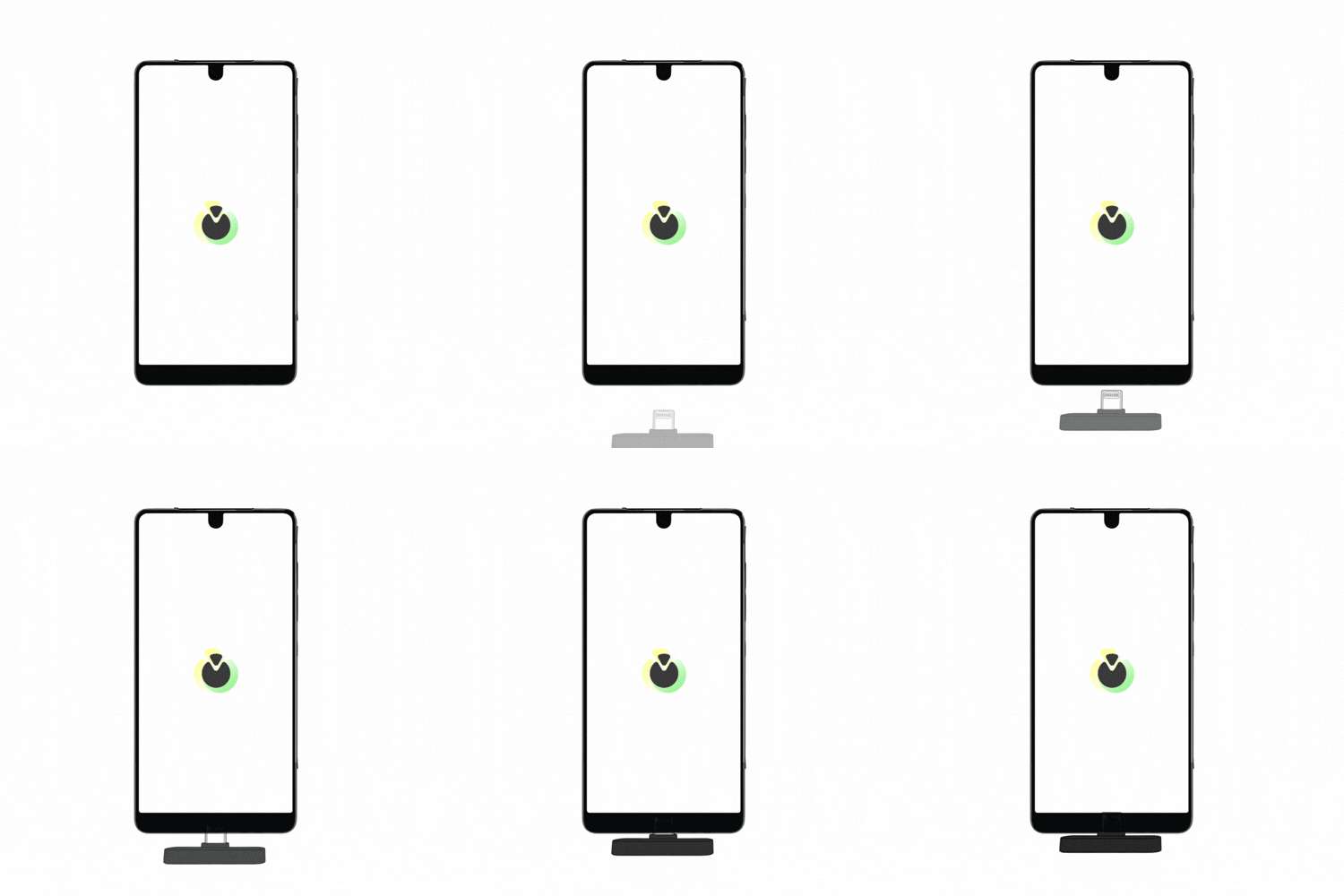
Q: My phone doesn't react when I plug in the Dongle?
A: OTG is off by default on some phones. Enable it:
- Unplug the Dongle
- Phone Settings → search "OTG" → enable it
- Plug the Dongle back in

Q: Translations are being repeated — what's going on?
A: Some phones have Dolby Atmos enabled or use MediaTek chips, both of which can cause repeated translations.
- Disable Dolby Atmos: Go to your phone's sound settings and turn off Dolby Atmos (or switch to standard sound).
- MediaTek chip users: In playback settings, disable "Play translation (other party)". This stops the repeat.
General
Q: Translation isn't accurate — what can I do?
A: A few common culprits:
- Media volume too low: voicepie picks up audio less clearly. Turn it up.
- Noisy environment: Move to a quieter spot, or speak closer to the mic.
- Speaking too fast or talking over each other: Slow down a bit, wait your turn, break long sentences into chunks.
- Accent or unclear pronunciation: Use standard speech where possible, avoid slang, repeat important info if needed.
- Specialized terminology: Use more common words where possible. For critical terms, run them through translation alone first to confirm.
Still stuck? Check the full FAQ →