

Using TransBuds O2 on iOS
1. Download the App
2. Grant Permissions
When opening voicepie for the first time, allow the following permissions in order — skipping any may affect your experience.
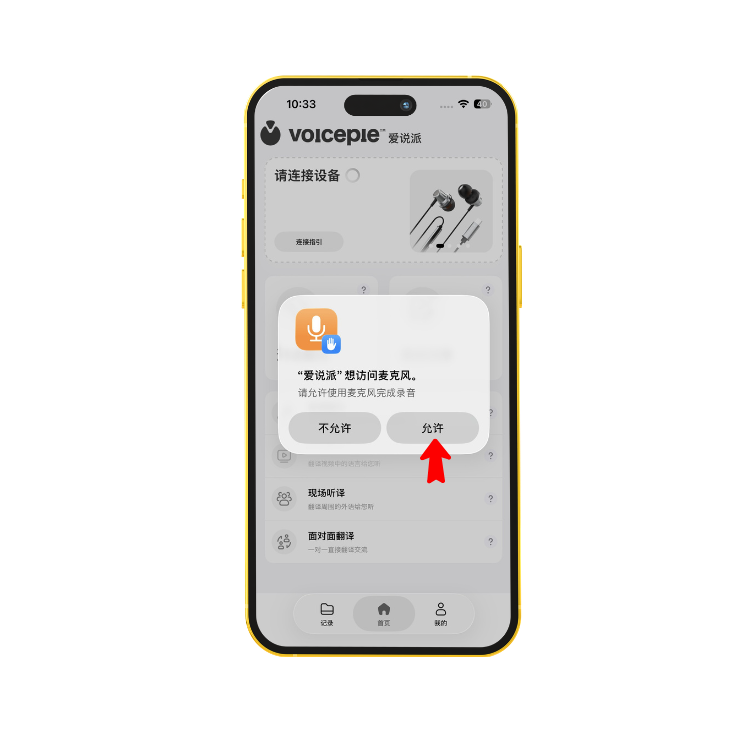
iOS will prompt "voicepie would like to access the microphone" — tap Allow.
Translation needs your microphone to capture your voice input.
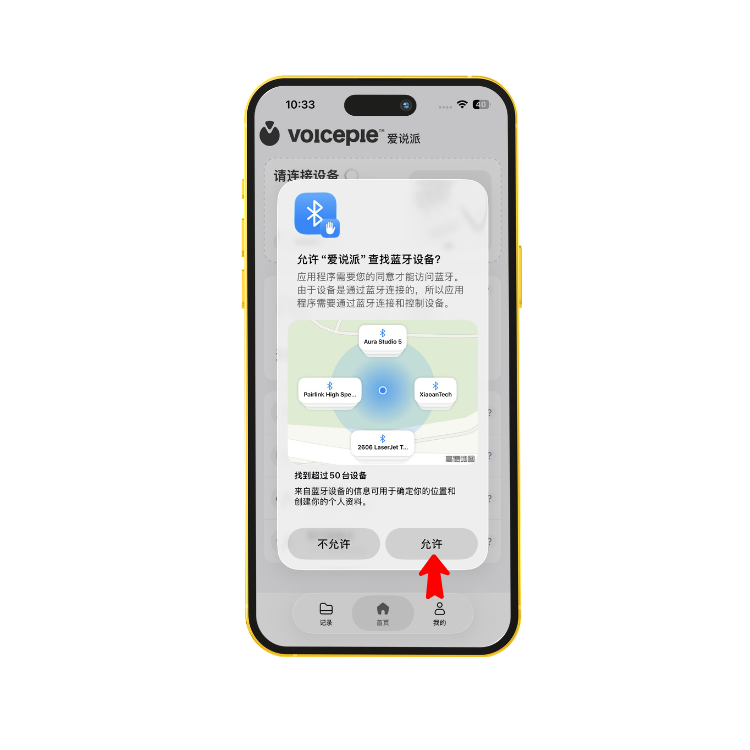
iOS will prompt "voicepie would like to use Bluetooth" — tap Allow.
Bluetooth is the only way iOS can connect to your voicepie translation device.
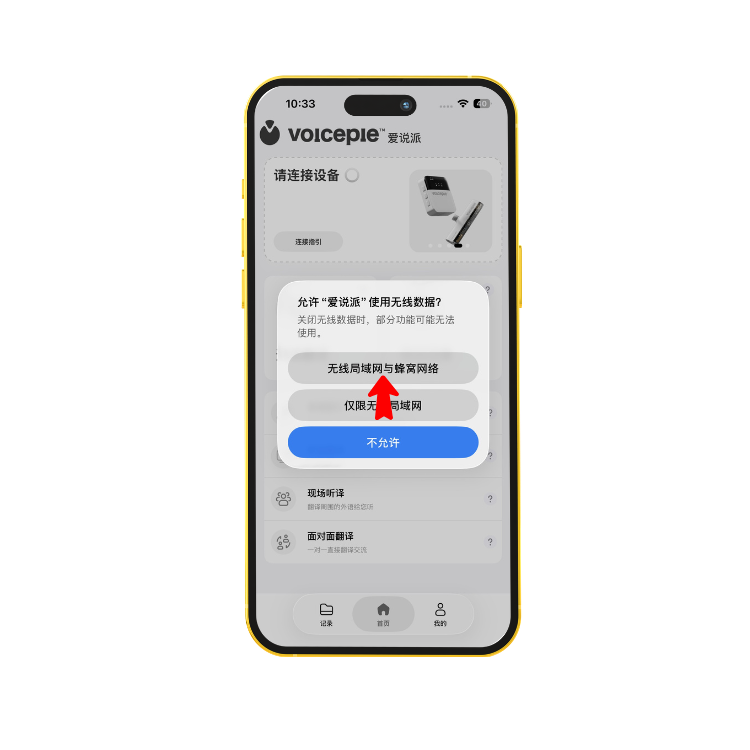
Allow voicepie to use cellular data and Wi-Fi.
Real-time translation requires an internet connection — keep this enabled.
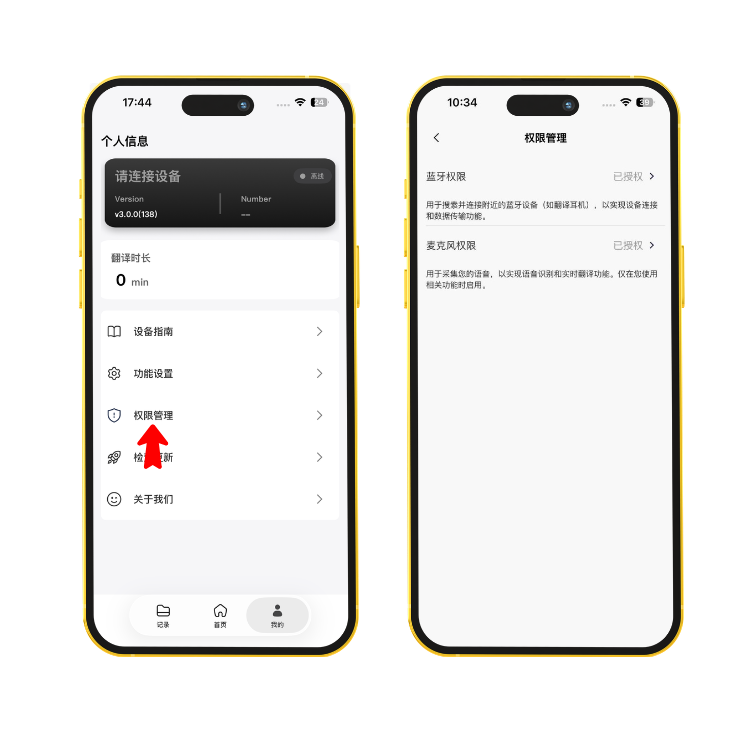
Not sure if everything's enabled? Open My Profile → Permission Manager in the app to check. You can also re-enable Bluetooth in iPhone Settings → voicepie.
3. Connect Your Device
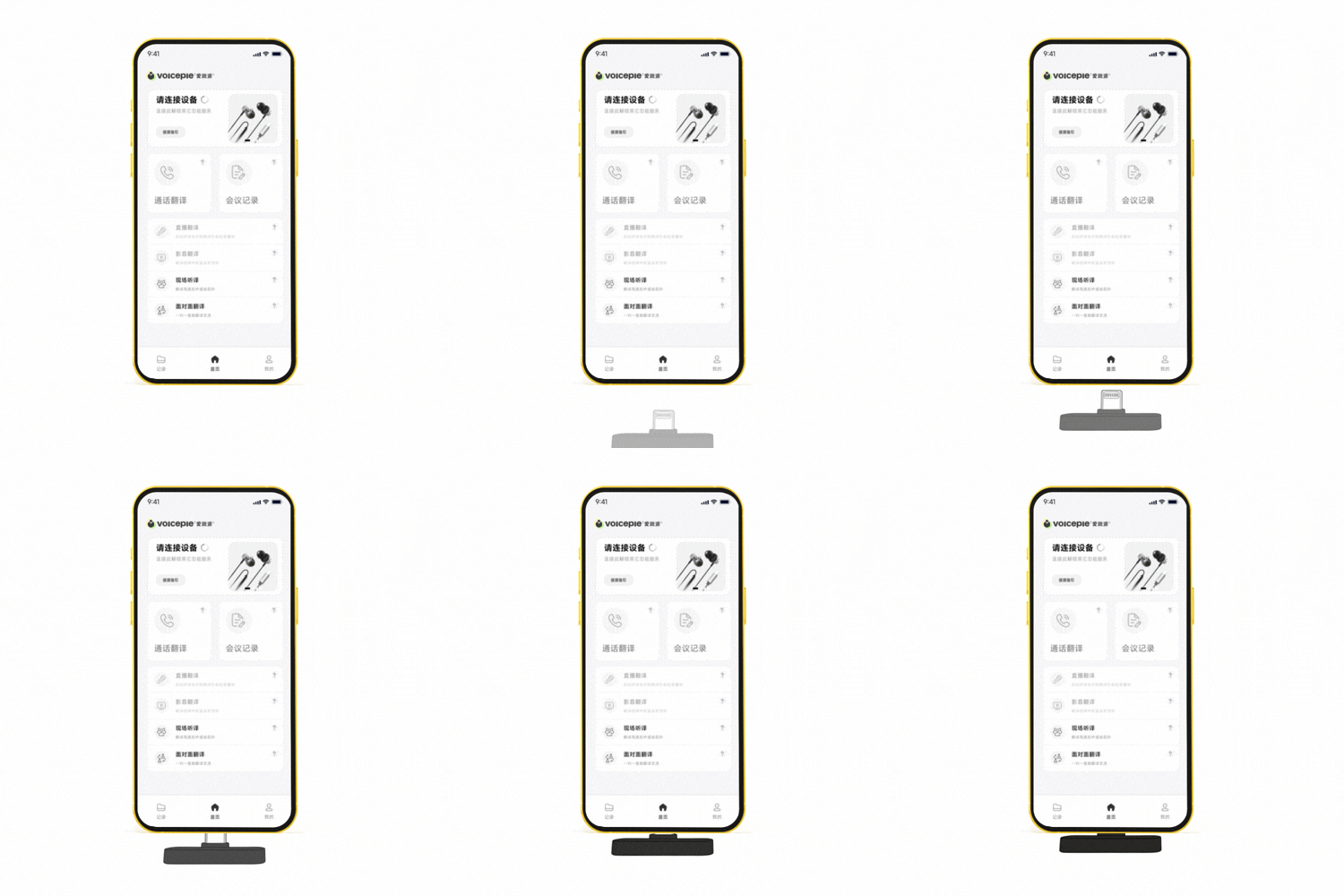
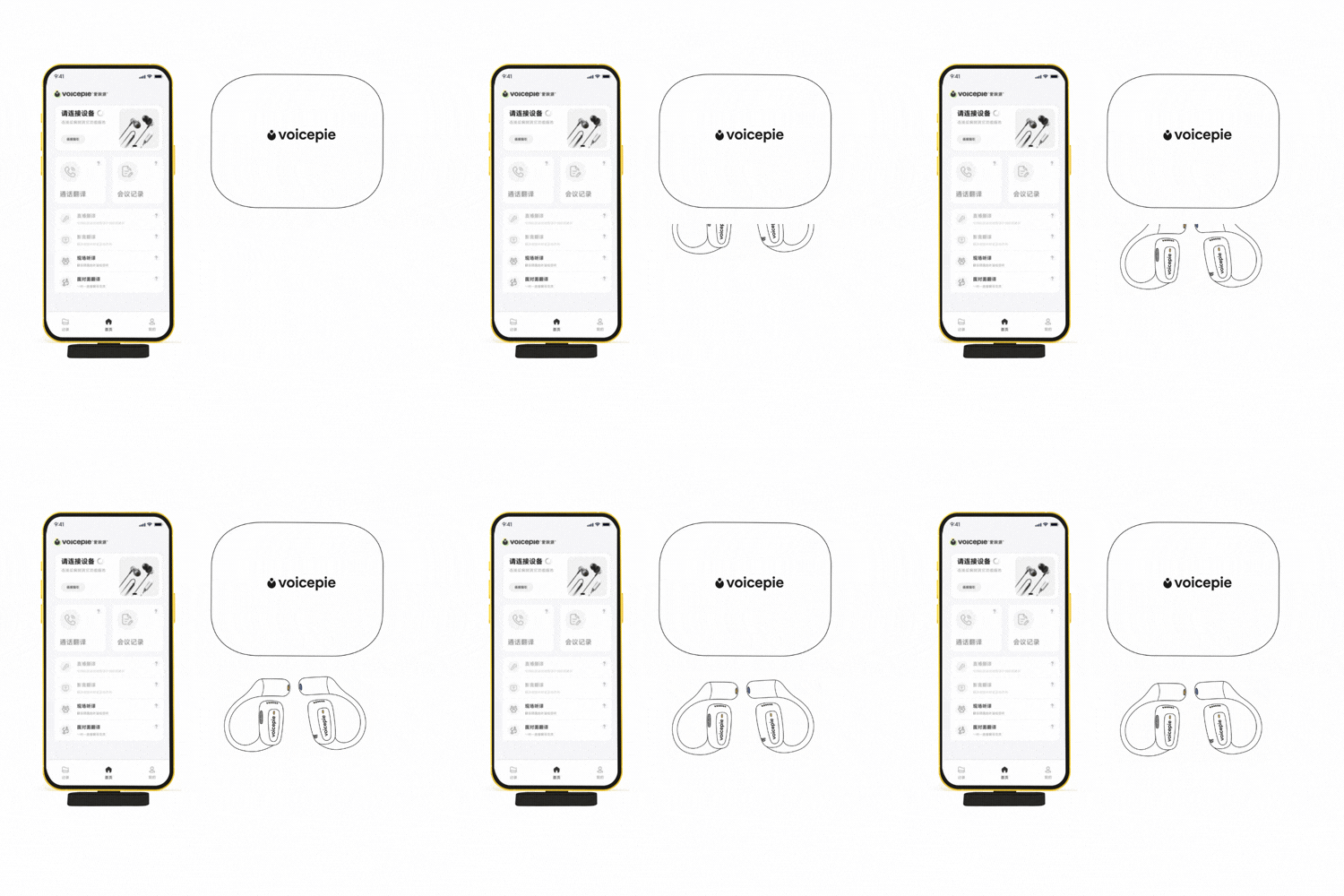
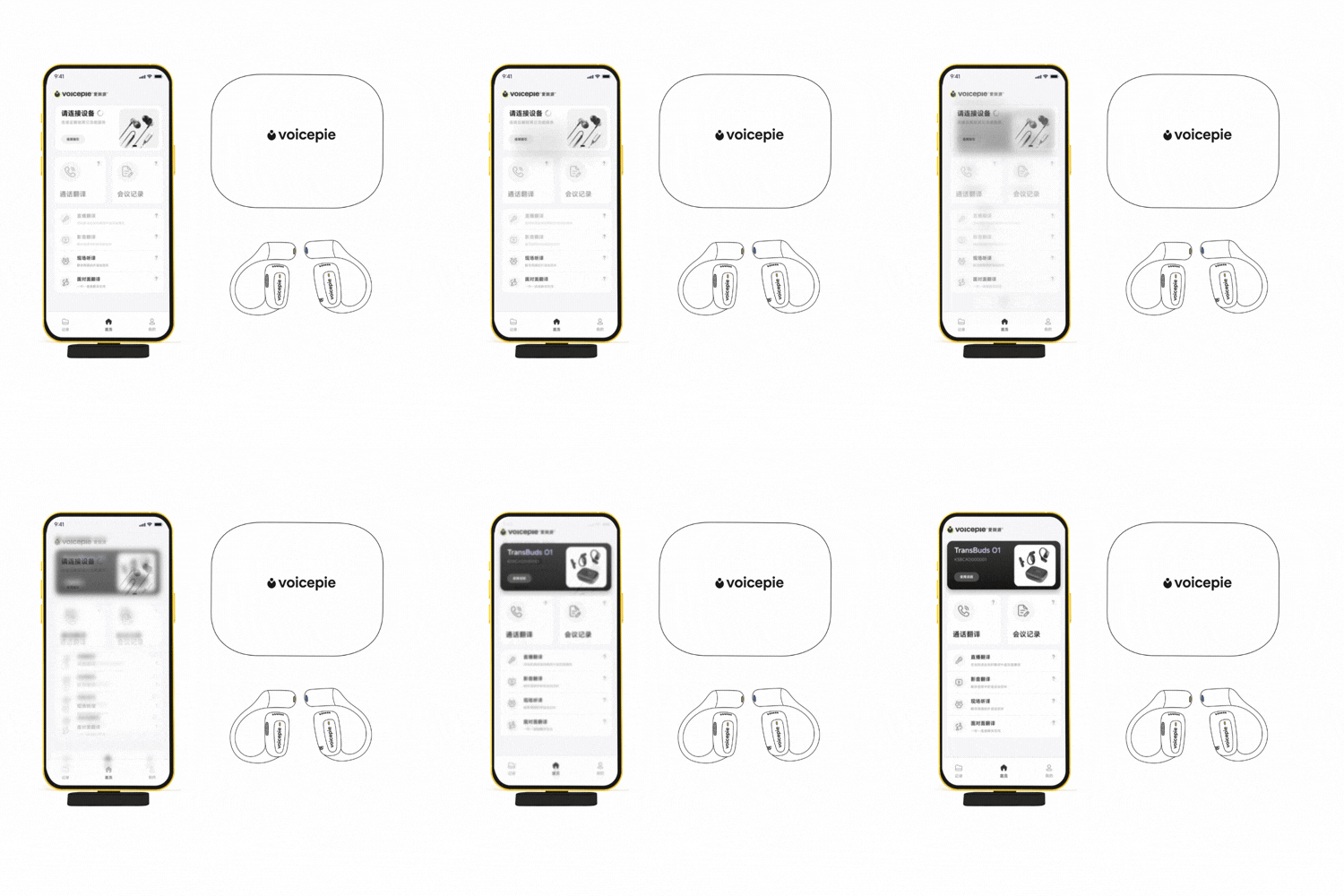
4. Getting Started
Translation Modes
O2 supports 6 translation modes — tap one on the app home or Picture-in-Picture window to start.
Call Translation
Translate both sides of phone calls and conversations in Skype, WhatsApp, Zoom, and other calling apps in real time.
Meeting Transcription
Transcribe and translate remote meetings in Zoom or Teams, as well as conversations in on-site meetings, so they are easier to follow and review.
Video Translation
Translate foreign-language videos, news, and podcasts on YouTube, Netflix, and other media apps in real time.
Livestream Translation
Translate livestream audio on YouTube, Twitch, TikTok, and other platforms to connect with audiences across languages.
Live Interpretation
Understand conversations around you during international travel, business visits, and exhibitions with real-time interpretation.
Face-to-Face Translation
Have two-way conversations with international clients and friends using either of the two button-control options.
Two-Button Controls
Single-Button Controls
App Home & Device Status
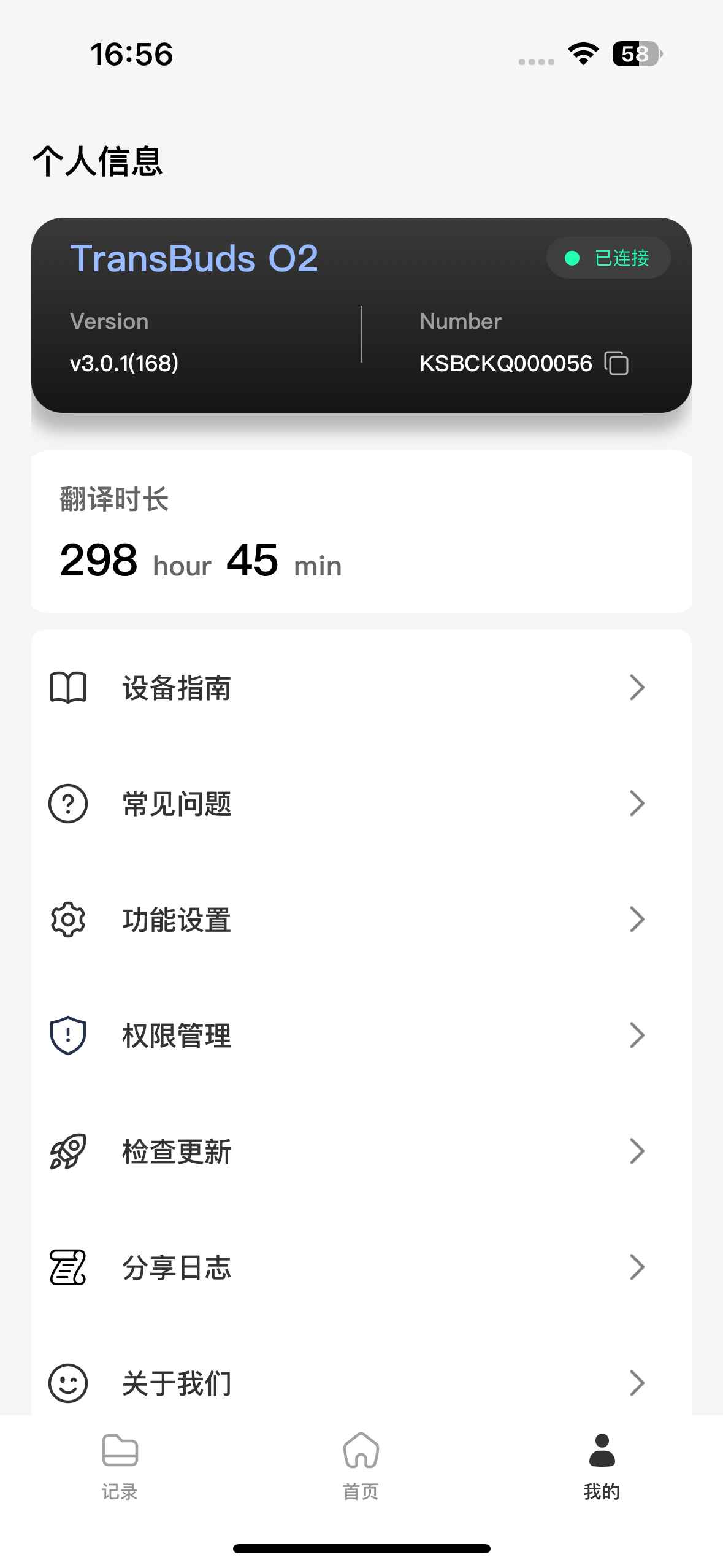
After connecting, the App Home shows the TransBuds O2 device card and device number. Confirm the device information before selecting a translation mode.
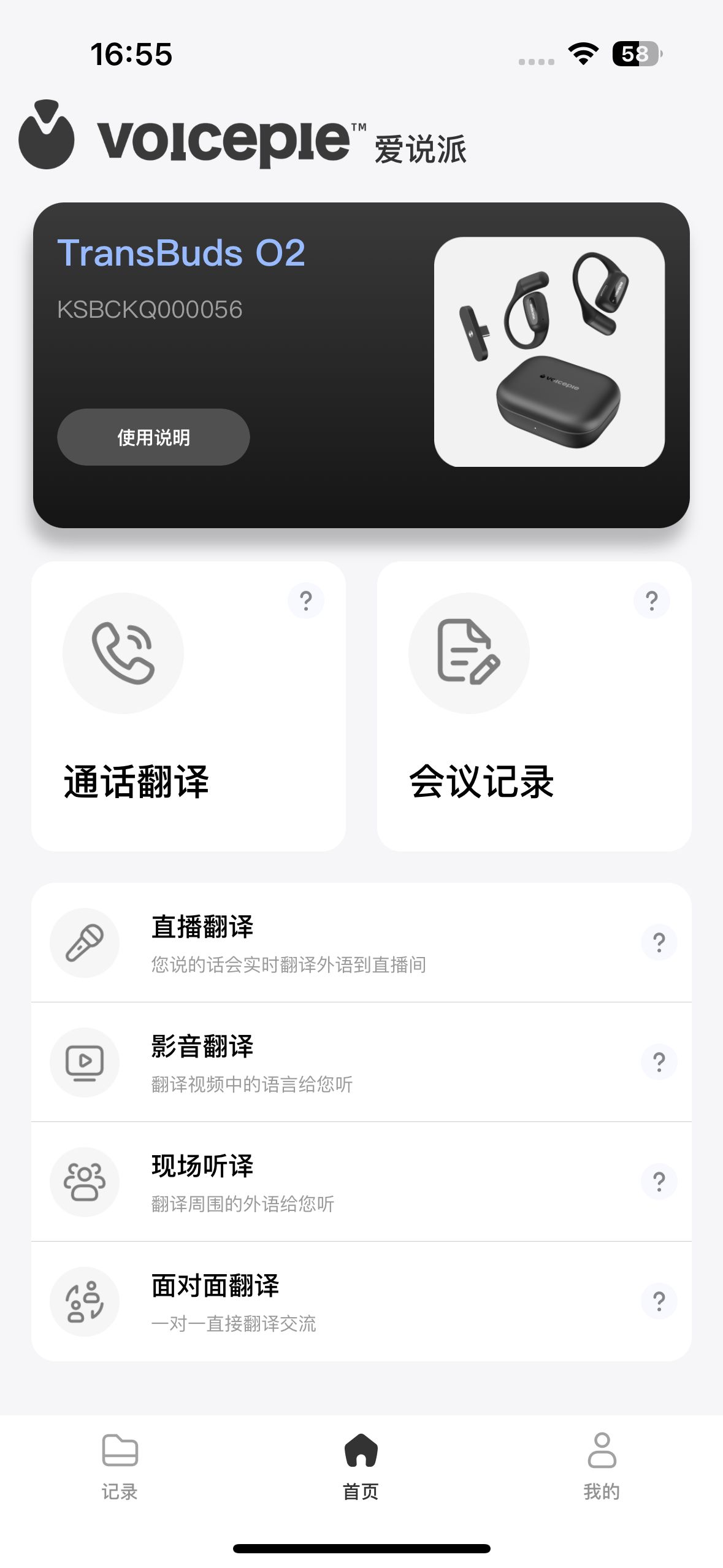
Open My Profile to check O2's connection status, version, and device number.
Languages & Voice
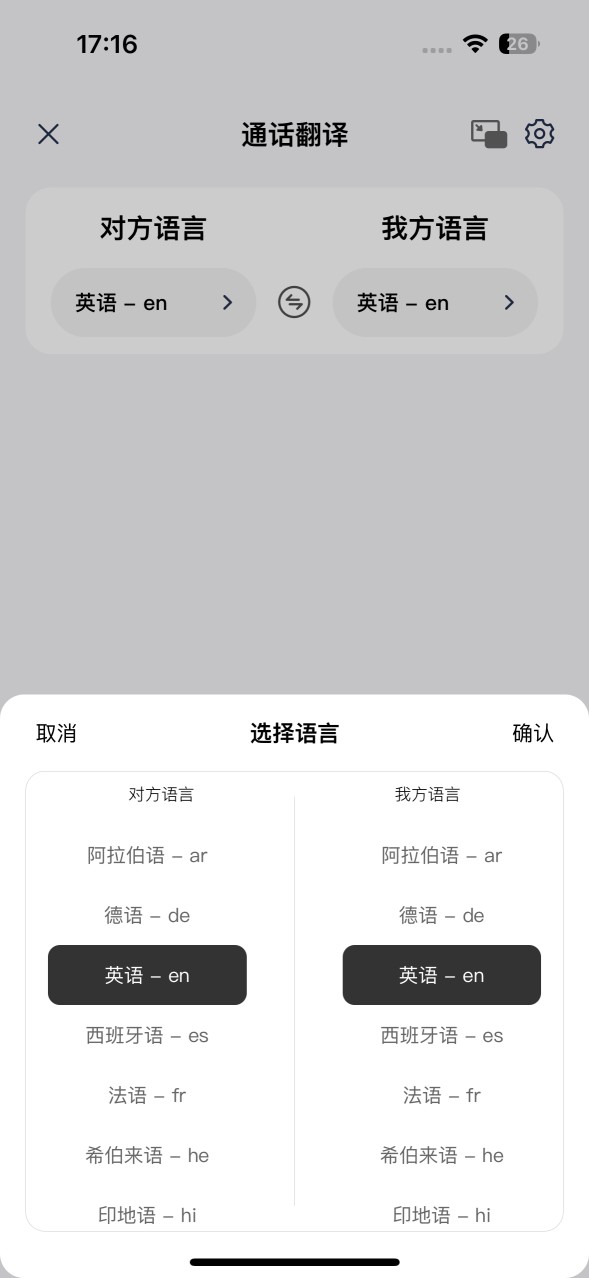
After opening Call Translation, Meeting Transcription, Livestream Translation, Video Translation, Live Interpretation, or Face-to-Face Translation, choose your language and the other person's language. Selecting the wrong languages will reduce recognition and translation accuracy.
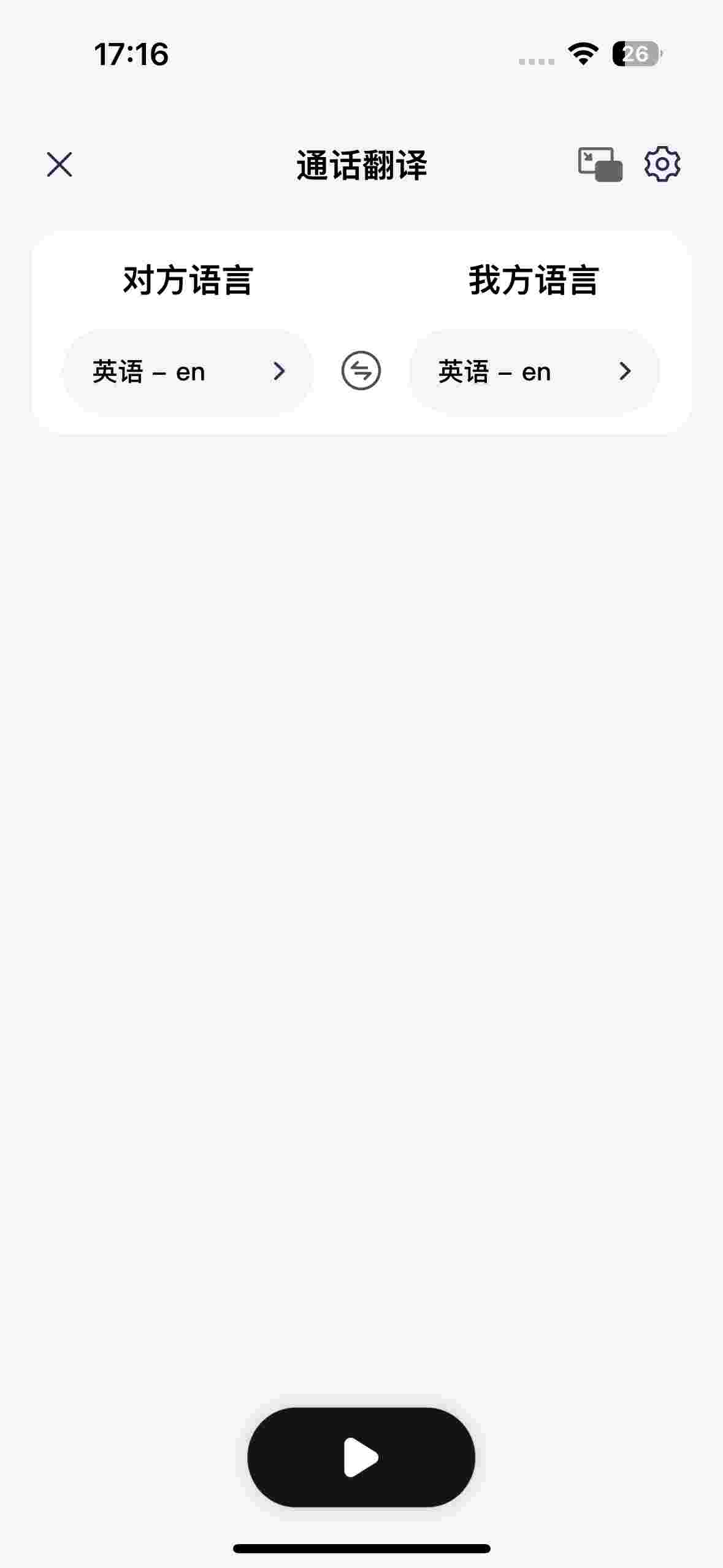
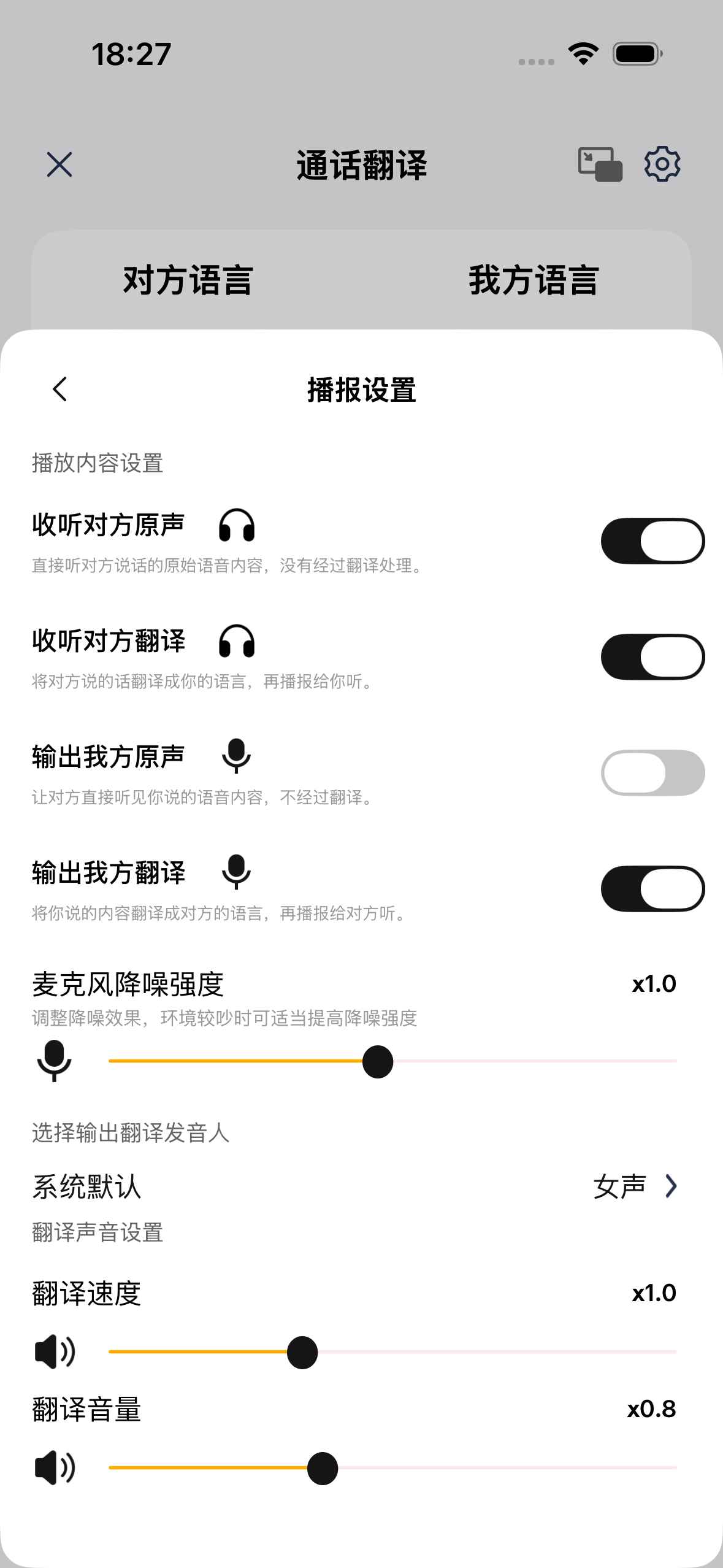
After entering a translation mode, tap the settings button in the top-right corner to adjust playback and voice options.
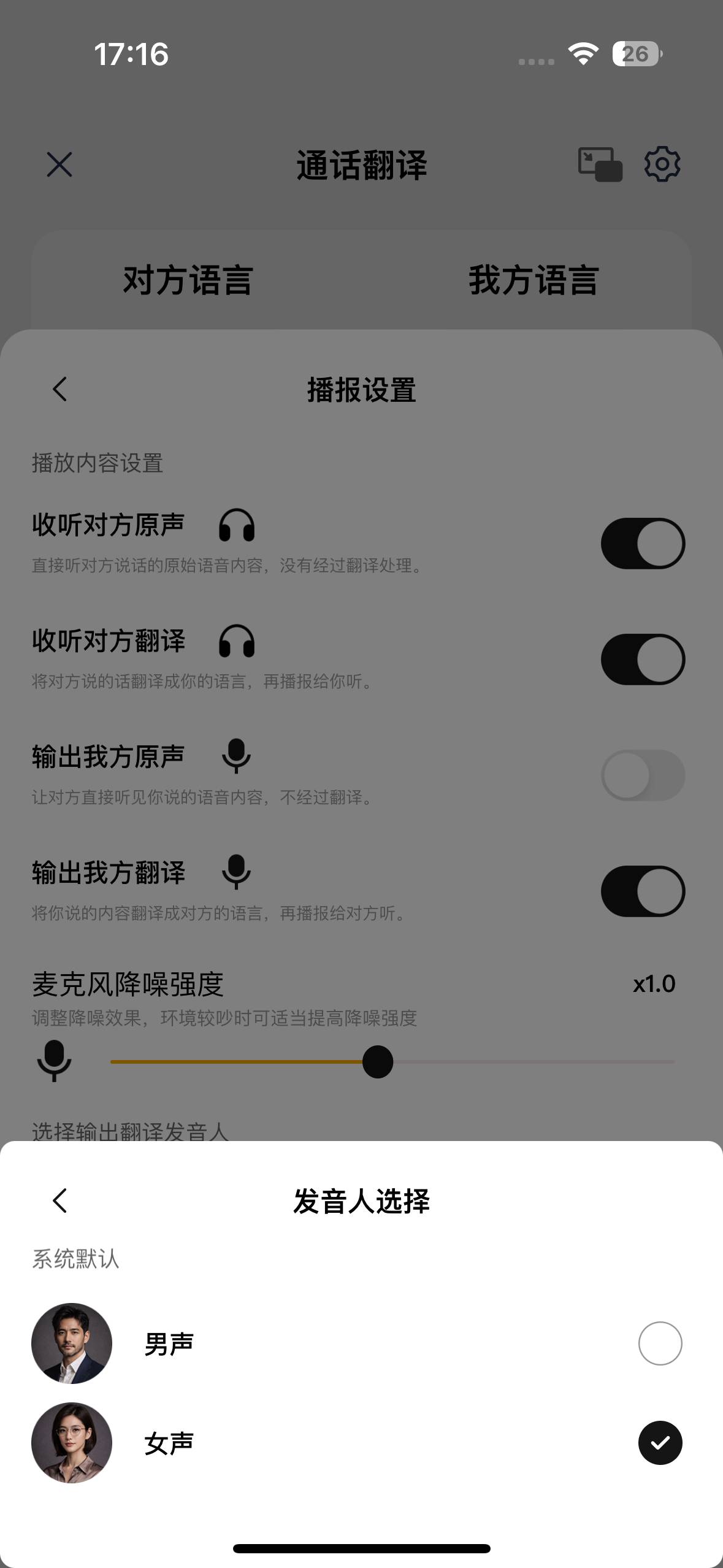
In Playback Settings, open the voice option and choose a male or female voice for translated speech.
TIP
Switch between male and female voices, or contact support for additional languages and custom voice cloning.
Playback Settings
Playback Settings control what each side hears. Keep the defaults for your first use, then adjust the original and translated audio for calls, livestreams, or face-to-face conversations.
Picture-in-Picture
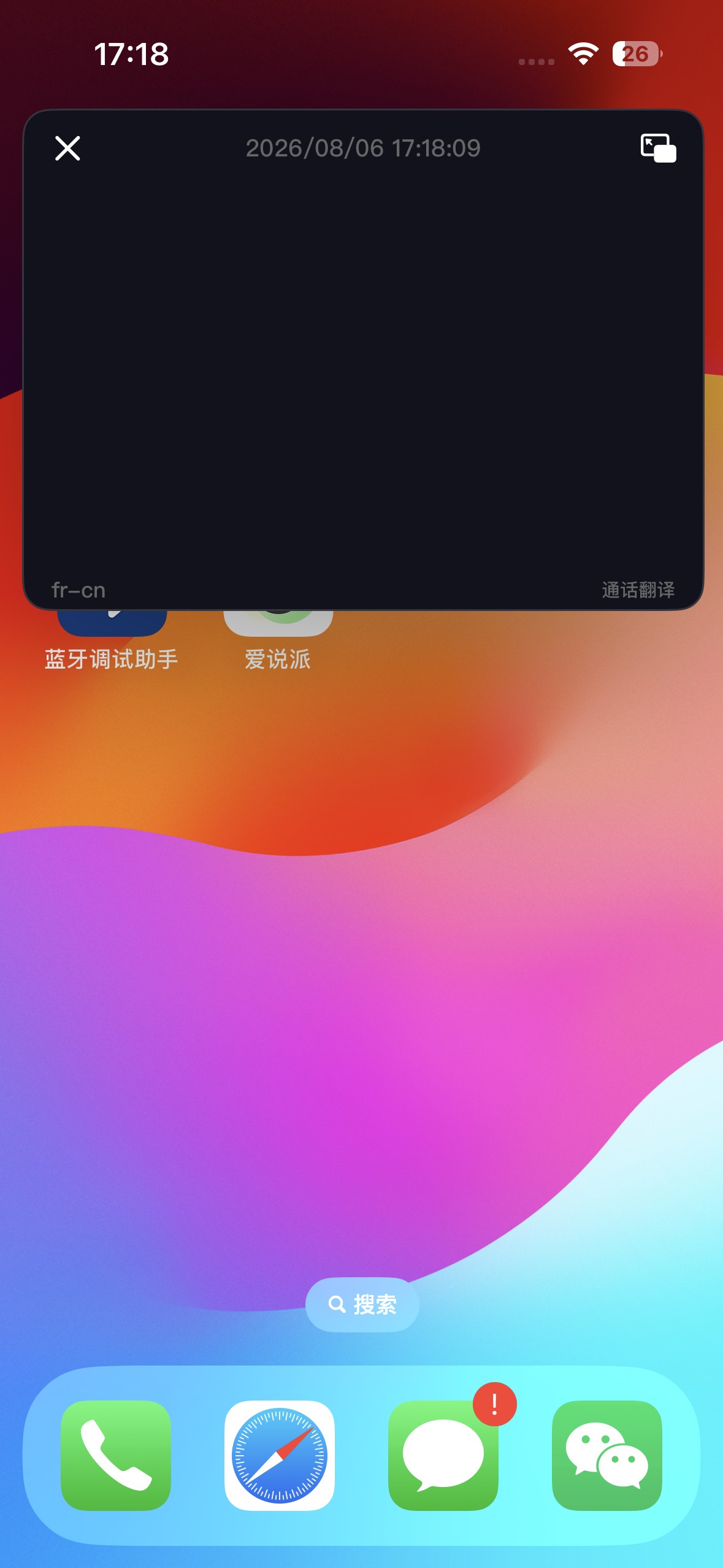
After entering a translation mode, the Picture-in-Picture window can stay above other apps. Drag it anywhere to keep reading translations during calls, web browsing, or other activities.
5. FAQ
iOS-specific
Q: How do I open / use Picture-in-Picture?
A: Once you enter a translation mode, the PiP window appears automatically and floats on top of other apps. Drag it anywhere — even switching to another app keeps it visible.
Q: Dongle's blue light keeps blinking and won't turn purple?
A: Means the Dongle hasn't paired with the earphones yet:
- Confirm the O2 earphones are powered on
- Move them closer to the Dongle (within 1 meter)
- Wait a few seconds for the Dongle's light to turn purple
Q: iOS version requirements?
A: iOS 14 minimum. Latest iOS is recommended for the best experience.
General
Q: Translation isn't accurate — what can I do?
A: A few common culprits:
- Media volume too low: voicepie picks up audio less clearly. Turn it up.
- Noisy environment: Move to a quieter spot, or speak closer to the mic.
- Speaking too fast or talking over each other: Slow down a bit, wait your turn, break long sentences into chunks.
- Accent or unclear pronunciation: Use standard speech where possible, avoid slang, repeat important info if needed.
- Specialized terminology: Use more common words where possible. For critical terms, run them through translation alone first to confirm.
Still stuck? Check the full FAQ →