

Using TransBuds C1 on Windows
Windows 10 / 11 (64-bit) only. Make sure you have a stable network connection before installing.
1. Download the App
Plug in your voicepie device before opening the installer.
2. Connect Your Device
Start with this video for the C1 / C2 connection workflow on Windows.

3. Getting Started
Translation Modes
C1 supports 5 translation modes — tap one on the app main screen to start.
Call Translation
Translate both sides of a voice call in real time on Windows.
Meeting Transcription
Record meetings and generate transcripts and translations for easy review.
Video Translation
Translate spoken content while watching foreign-language videos, news, or courses.
Livestream Translation
Translate and play back your speech in real time while livestreaming on Windows.
Live Interpretation
Capture speech through your computer microphone and display translations in real time.
Record Summaries & Settings
Review generated summaries and adjust record settings for your workflow.
Languages & Voice
19 built-in languages cover all major regions worldwide.
Need another language? Just reach out to support.
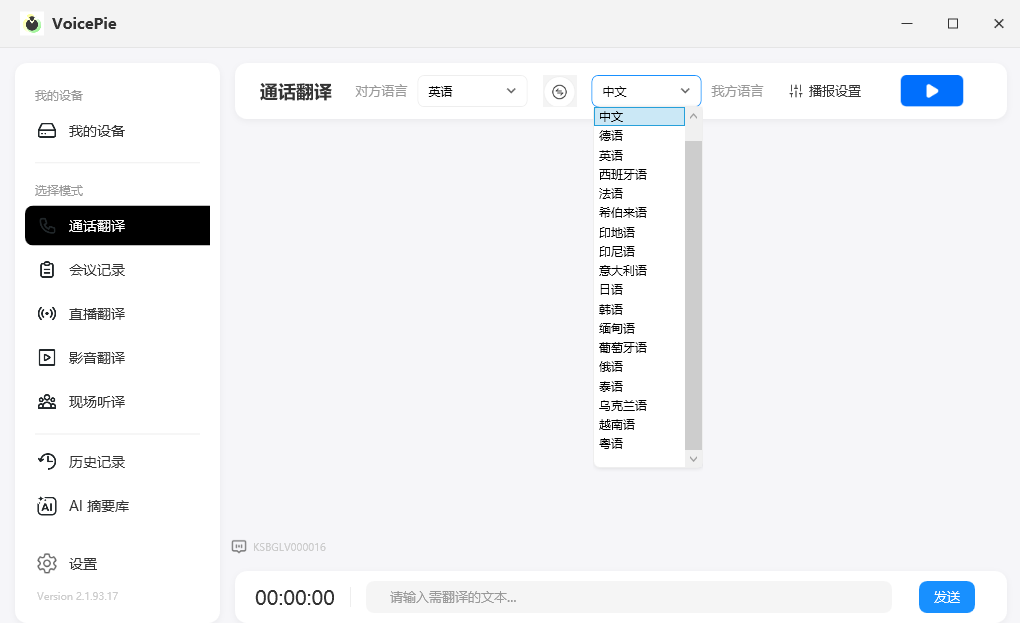
Switch between male and female voices, or get your own voice cloned for the most natural sound.
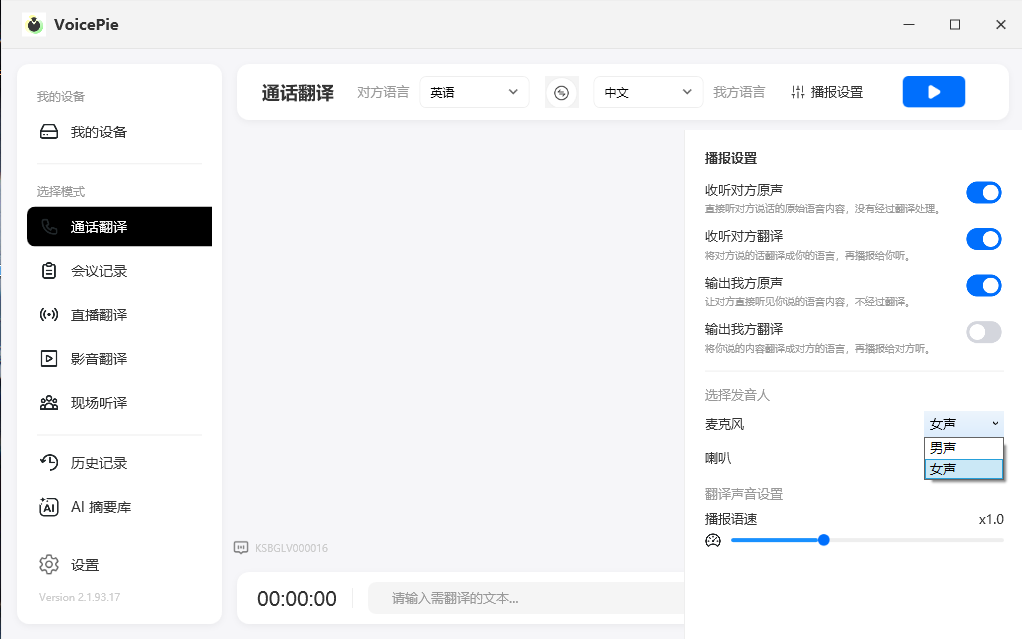
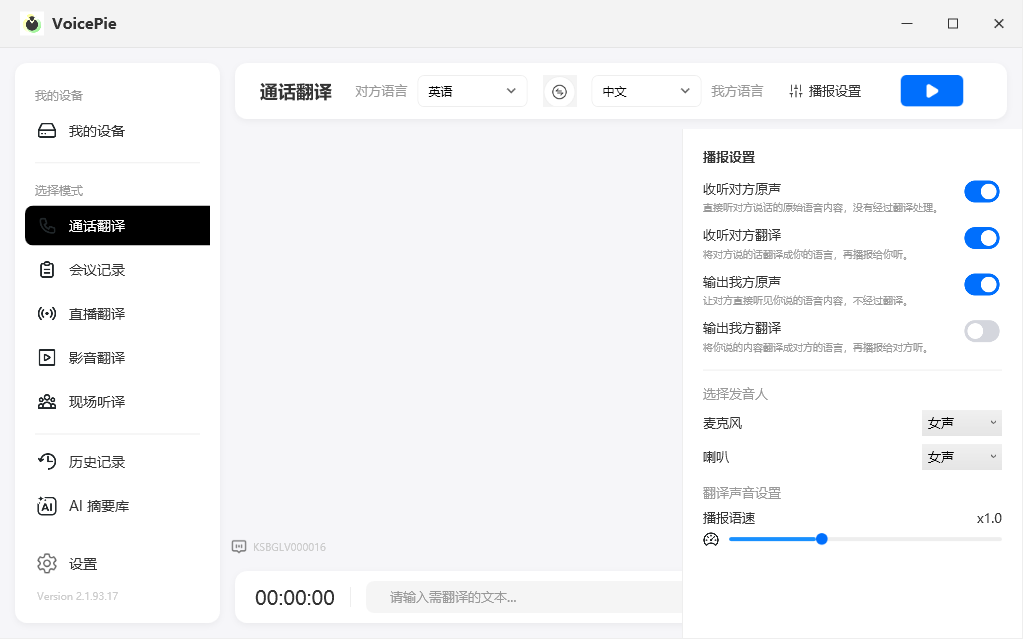
Playback Settings
Tune playback to fit your scenario — control whether each side hears the other's original voice, the translation, or both.
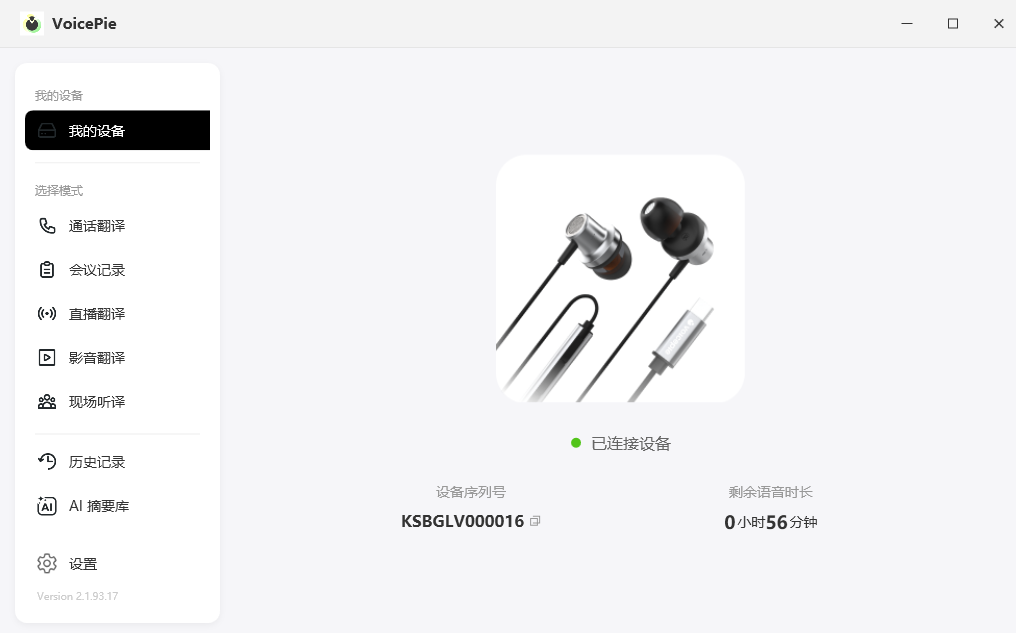
App Main Screen
The main screen shows your connected device and all 5 translation modes — tap one and start translating.
4. FAQ
Windows-specific
Q: voicepie does not translate or you cannot hear translated audio?
A: Make sure Windows and the third-party app use 4- kikaGO.AI ENC Microphone for both the microphone and speaker.
Q: Installation failed / file not found?
A: Some browsers or antivirus software block the installer. Try:
- Check the downloaded file size — make sure it's complete
- Temporarily disable your antivirus and retry
- Right-click the installer → Properties → check Unblock → run again
Full details: Installation Failed / File Not Found
Q: Driver error [Code 52]?
A: This is a Windows driver signature verification issue. You'll need to disable driver signature enforcement via Advanced Startup, then reinstall the driver.
Full details: Driver Error Code 52
Q: How do I cleanly uninstall the driver?
A: Uninstall the driver files through Device Manager, then restart your PC.
Full details: Clean Driver Uninstall
Q: Can't connect to the server?
A: Usually a network or firewall issue:
- Confirm you have a working internet connection
- Turn off proxy / VPN and retry
- Check whether your firewall is blocking voicepie
Full details: Server Connection Failed
Q: "The algo date is expired" popup?
A: Your software is out of date. Download and reinstall the latest version.
Full details: Algo Date Expired Popup
General
Q: Translation isn't accurate — what can I do?
A: A few common culprits:
- Media volume too low: voicepie picks up audio less clearly. Turn it up.
- Noisy environment: Move to a quieter spot, or speak closer to the mic.
- Speaking too fast or talking over each other: Slow down a bit, wait your turn, break long sentences into chunks.
- Accent or unclear pronunciation: Use standard speech where possible, avoid slang, repeat important info if needed.
- Specialized terminology: Use more common words where possible. For critical terms, run them through translation alone first to confirm.
Still stuck? Check the full FAQ →