

No Translation or No Translated Audio on Windows
If voicepie does not translate or you cannot hear the translated audio during a call or meeting in Teams, check these three settings.
Select this device
4- kikaGO.AI ENC Microphone
Use this device for Windows audio, the Teams microphone, and the Teams speaker.
1. Check the Windows Audio Device
Select the sound icon in the lower-right corner of Windows and change the playback device to:
Speaker (4- kikaGO.AI ENC Microphone)
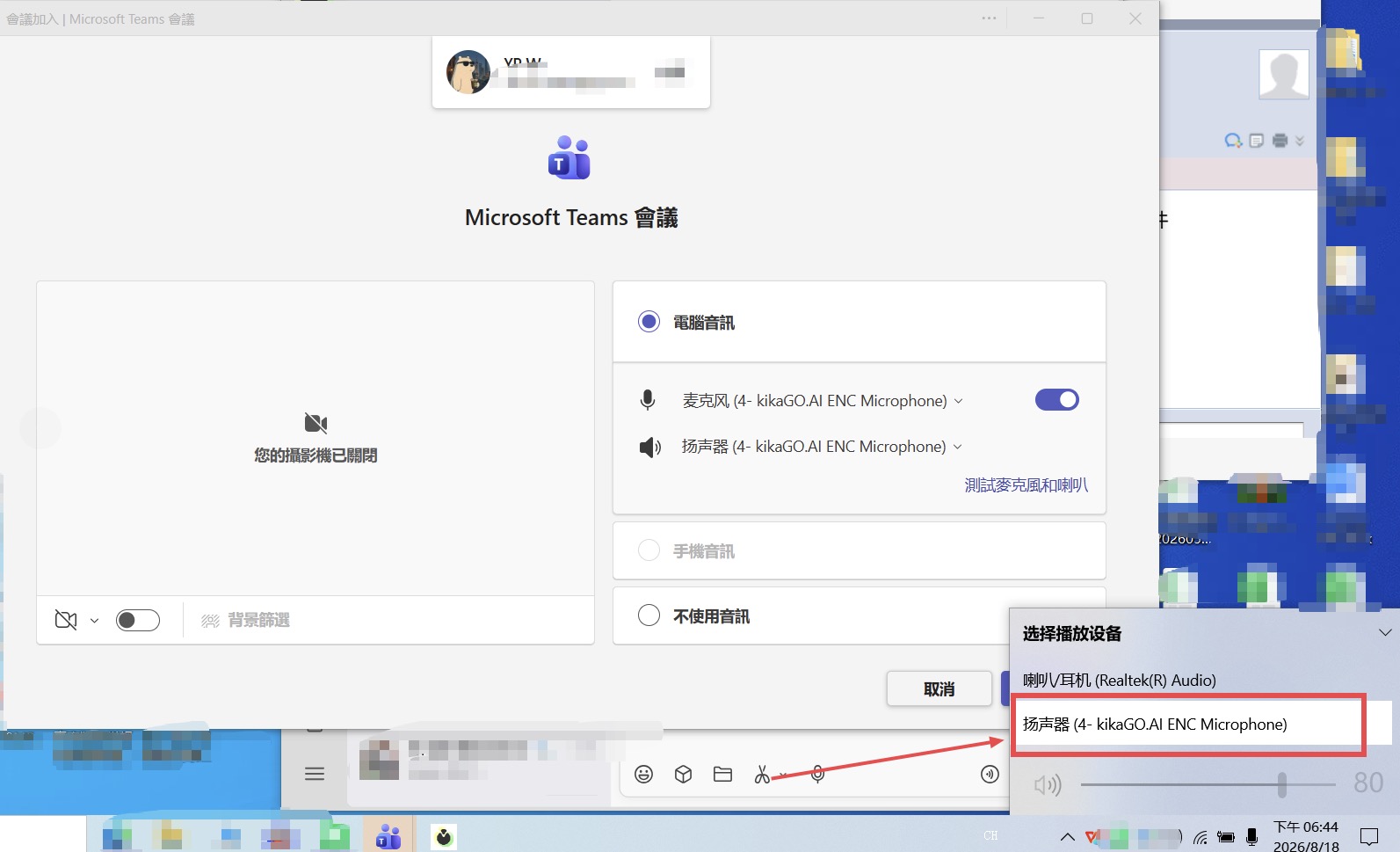
2. Check the Teams Microphone
Before joining the Teams meeting, open the microphone menu under Computer audio and select:
Microphone (4- kikaGO.AI ENC Microphone)
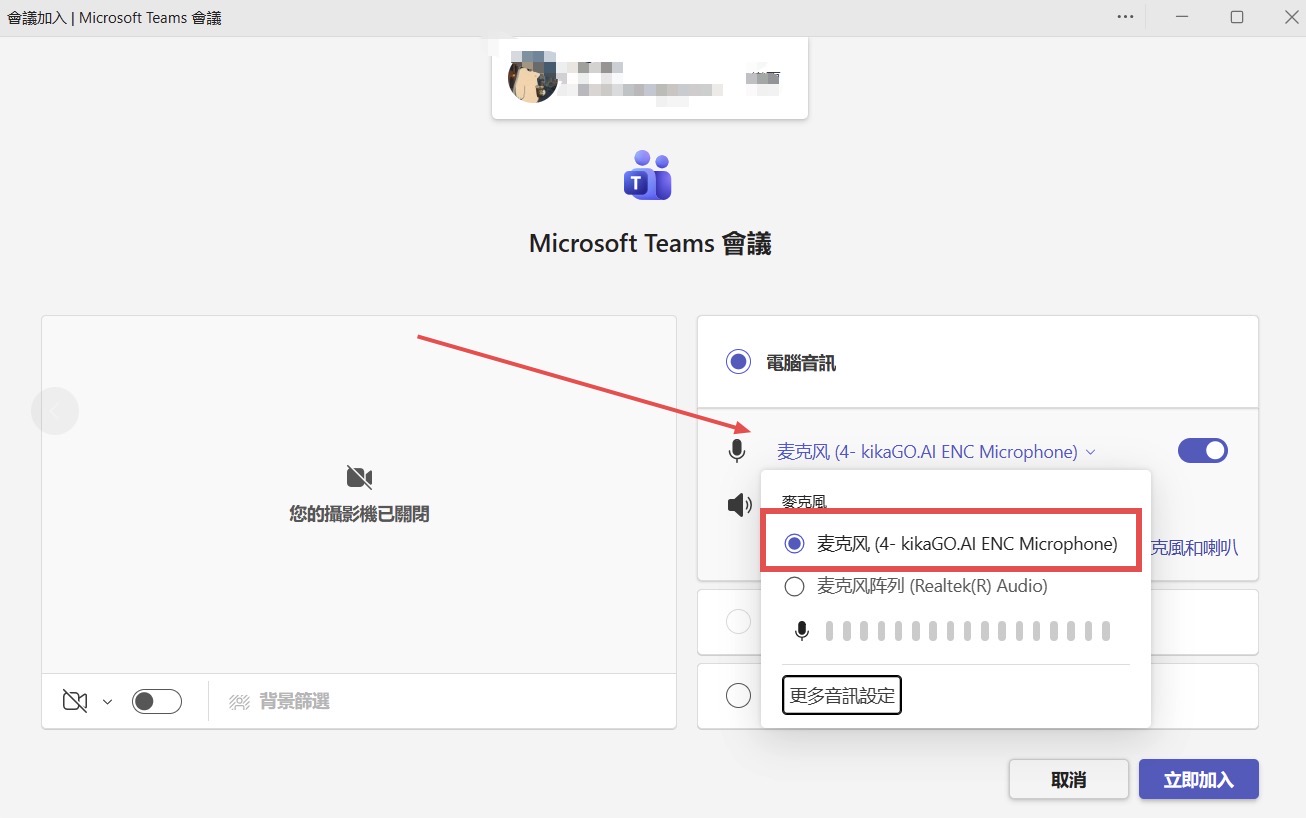
3. Check the Teams Speaker
Open the speaker menu and select:
Speaker (4- kikaGO.AI ENC Microphone)
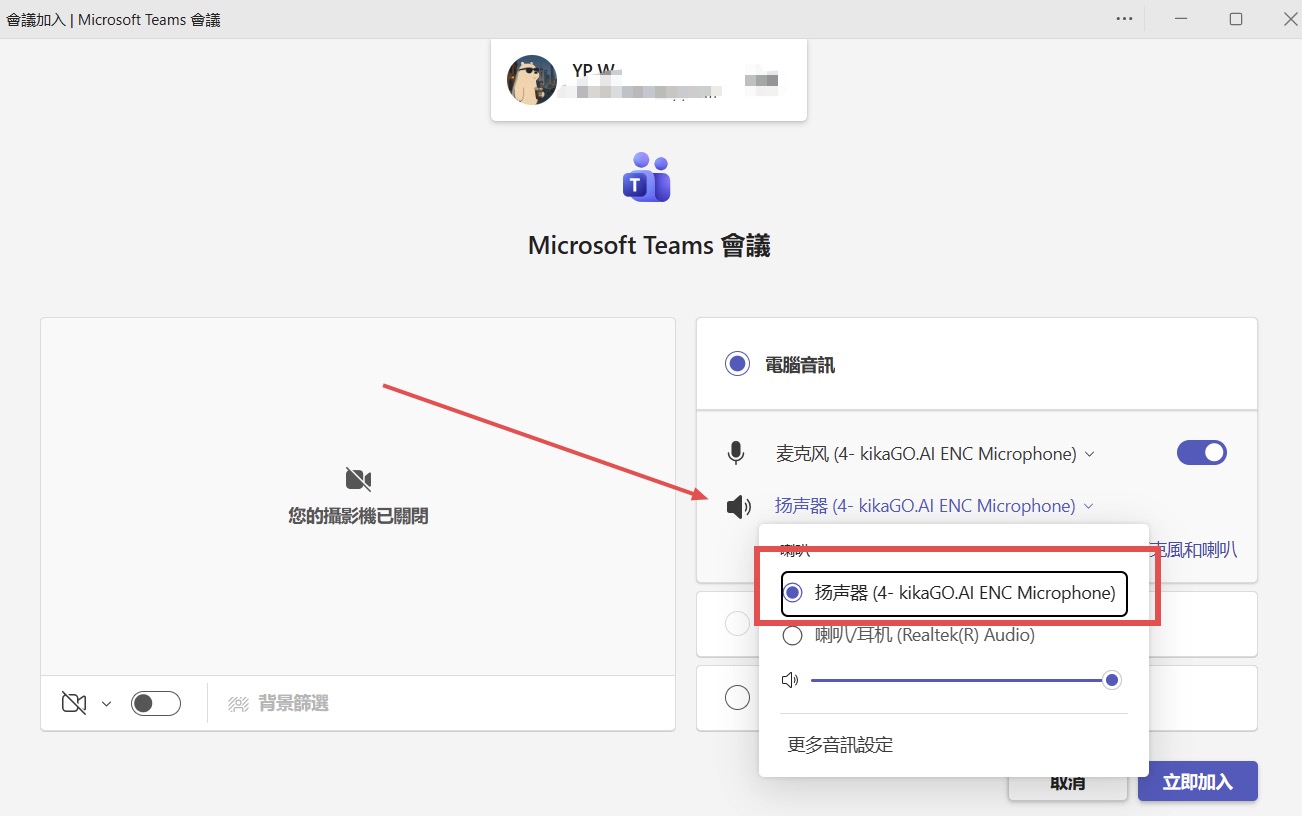
4. Start Translation
After completing the settings above:
- Open the voicepie App and confirm that the device is connected.
- Choose the translation mode and languages.
- Select Start, then join the Teams call or meeting.
Why must Teams use the voicepie device?
If Teams uses the computer's default microphone or another speaker, the call audio bypasses voicepie and the voicepie App cannot translate it.
Still Not Working?
- Make sure both the Teams microphone and speaker use
4- kikaGO.AI ENC Microphone. - Disconnect and reconnect the voicepie device.
- Quit Teams completely, then reopen it.
- Make sure translation has started in the voicepie App and the network is working.
For Zoom, Skype, Tencent Meeting, or another calling app, select the same voicepie device in that app's audio settings.