Using AI Dongle on macOS
💡This guide is designed for first-time users or those unfamiliar with the voicepie app, providing detailed steps to get started effortlessly.
❗️Supported only on Mac computers with M-series chips!
Download and Install
Search for voicepie in the App Store to download and installClick to download the app installation package
Pairing Bluetooth Devices
Dongle Button Instructions:
Long Press the button for 2 seconds to connect a new Bluetooth device.(Ensure the Bluetooth device is in pairing mode)
Short Press the button to reconnect to a previously paired device.(The dongle will automatically reconnect to previously paired devices upon insertion. If unsuccessful, short press the button once)
Dongle LED Indicator:
Flashing Light: Not connected to a Bluetooth device
Steady Light: Successfully connected to a Bluetooth device
- Insert the receiver into your phone or PC (you can use a USB adapter for PC connections).

- Once inserted, the receiver's LED will flash. Long press the receiver's button for 2 seconds to pair with a new Bluetooth device (e.g., Bluetooth earphones, speakers).

- When the LED changes to a steady light, the connection is successful, and the Bluetooth device will confirm the pairing.

- Open the voicepie app on your PC or phone. Once the receiver is recognized, configure the app for real-time translation functionality.

User Guide
- Install voicepie App on MacBook

- Open the app and insert the AI Dongle.
Remove the previously paired Bluetooth device from its case, and it will automatically connect to the AI Dongle. No need to pair the Bluetooth earphones directly with the MacBook.

- Once the app recognizes the AI Dongle, the main interface will open.
If a permissions prompt appears, ensure to grant the necessary authorizations.

- Important: Before starting translation, ensure that both the audio input and output on your MacBook are set to kikago.ai enc headphone.
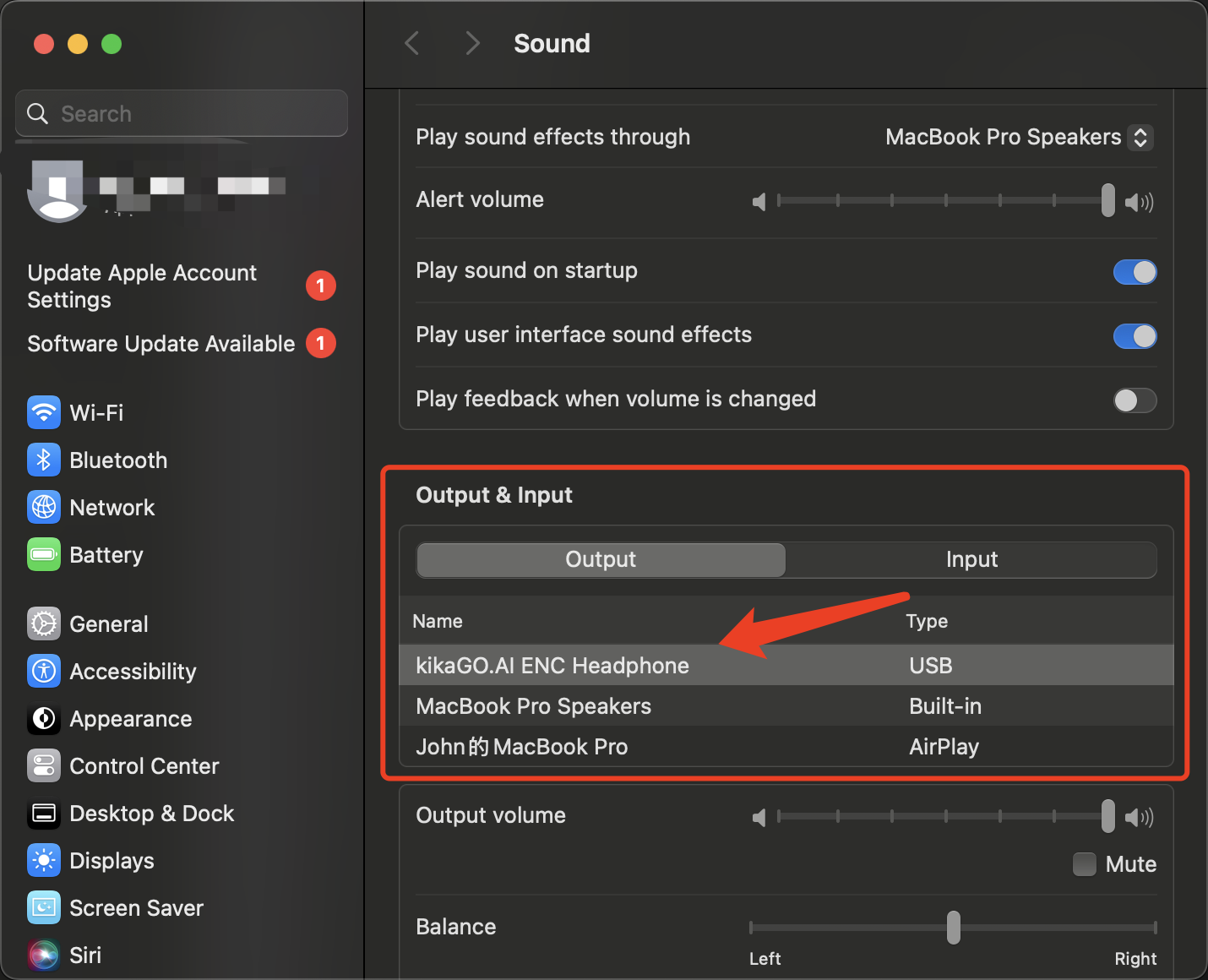
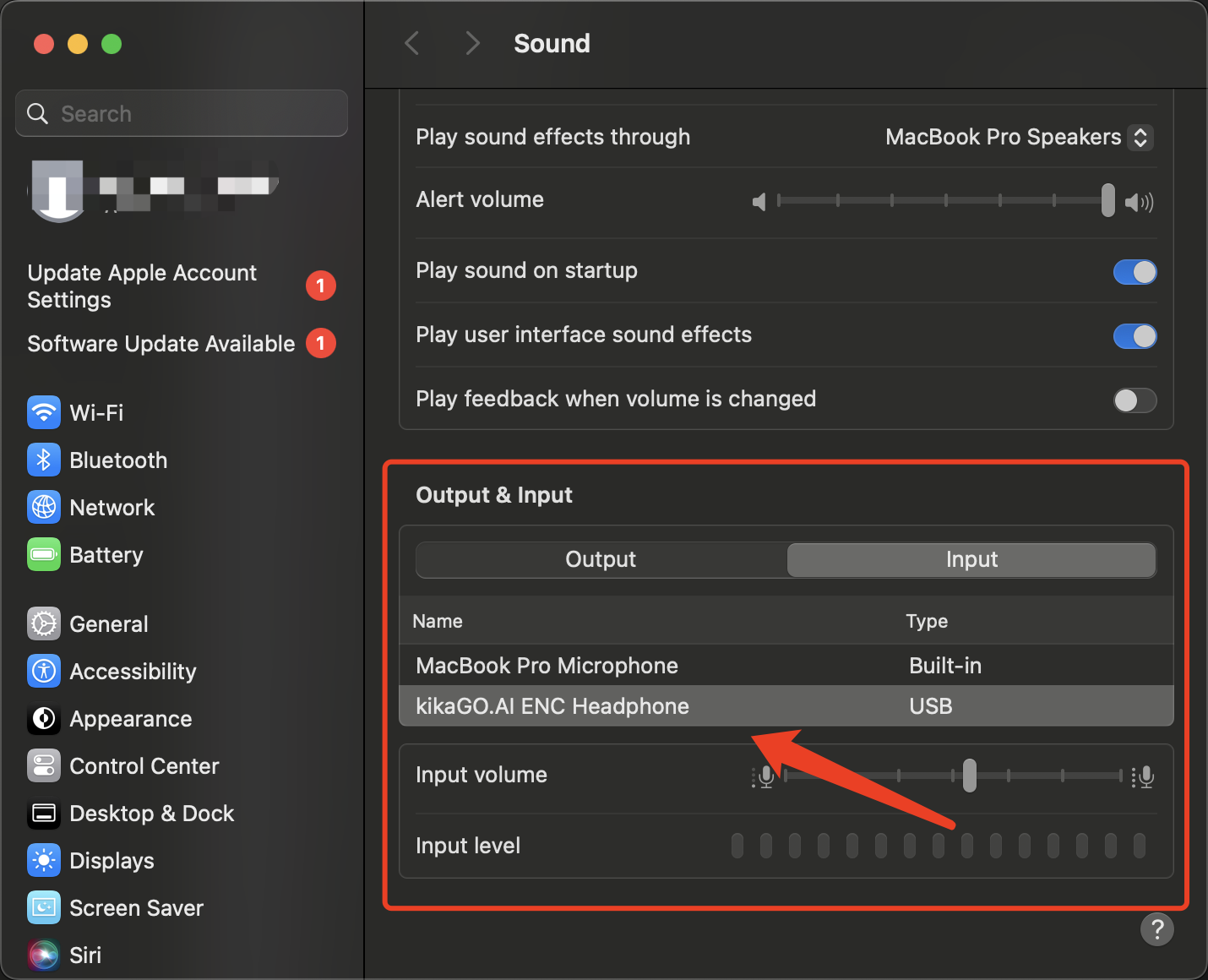
- You can now select a translation mode and begin using the real-time translation feature, enabling seamless communication.

App Interface