Using TransMic on macOS
💡 This guide provides step-by-step instructions for users unfamiliar with the Voicepie application to get started easily.
❗️Only compatible with macOS devices powered by an M-series chip!
Download and Install
Search for voicepie in the App Store to download and installClick to download the app installation package
User Guide
- Install voicepie App on macOS
Download and install the app from the App Store or official website.

- Connect AI Translator and Clip-On Microphone
Plug in the AI Translator dongle into your MacBook and power on the clip-on microphone device. When the blue LED on the clip-on microphone flashes and turns steady, it is successfully paired with the AI Translator.

- Launch and Configure the App
Open the voicepie app. Once the AI Translator is recognized, you will enter the main interface. Grant permissions if prompted by the system.

- Set Audio Input and Output
Ensure the macOS audio input and output are set to kikago.ai enc headphone in the system sound settings.
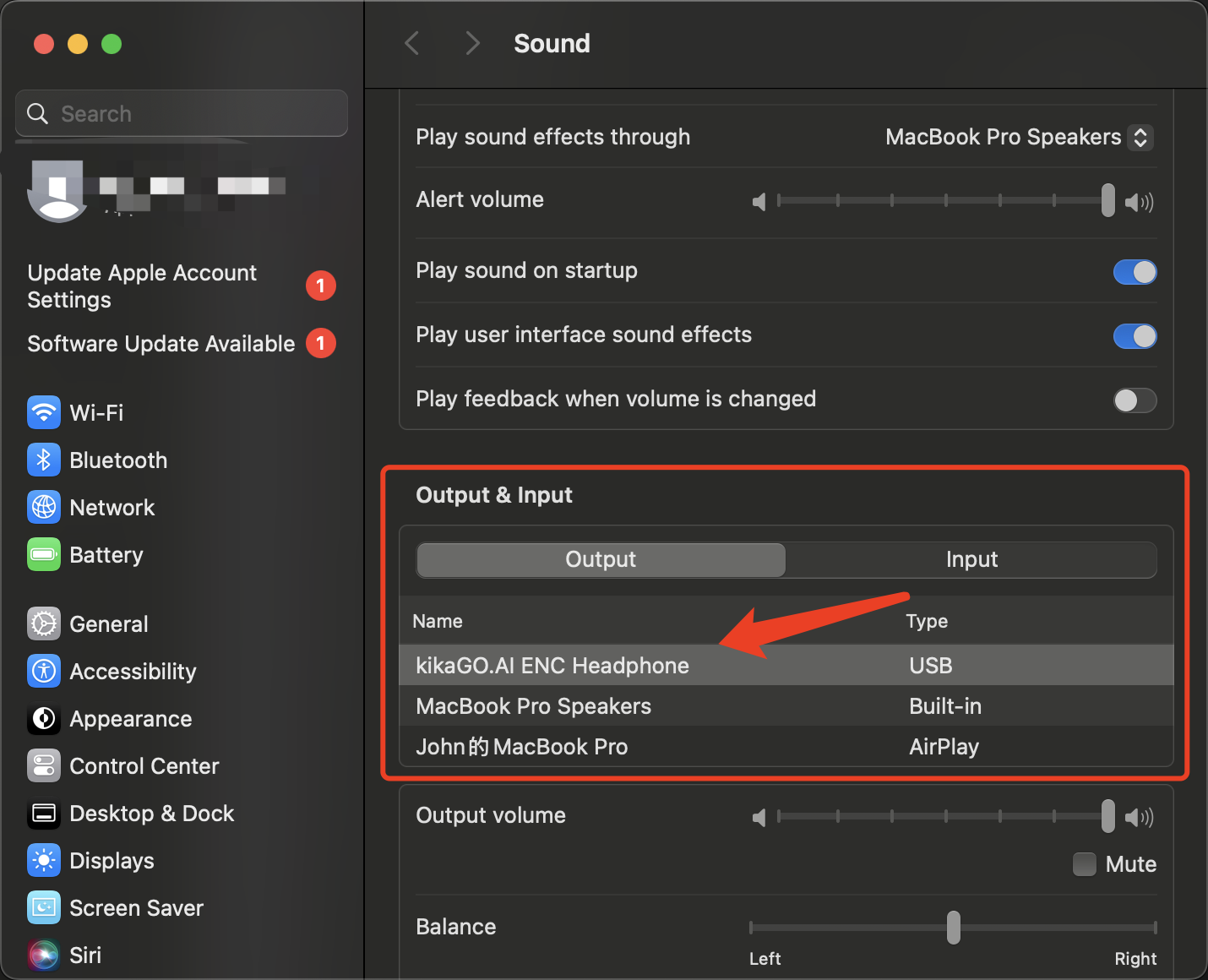
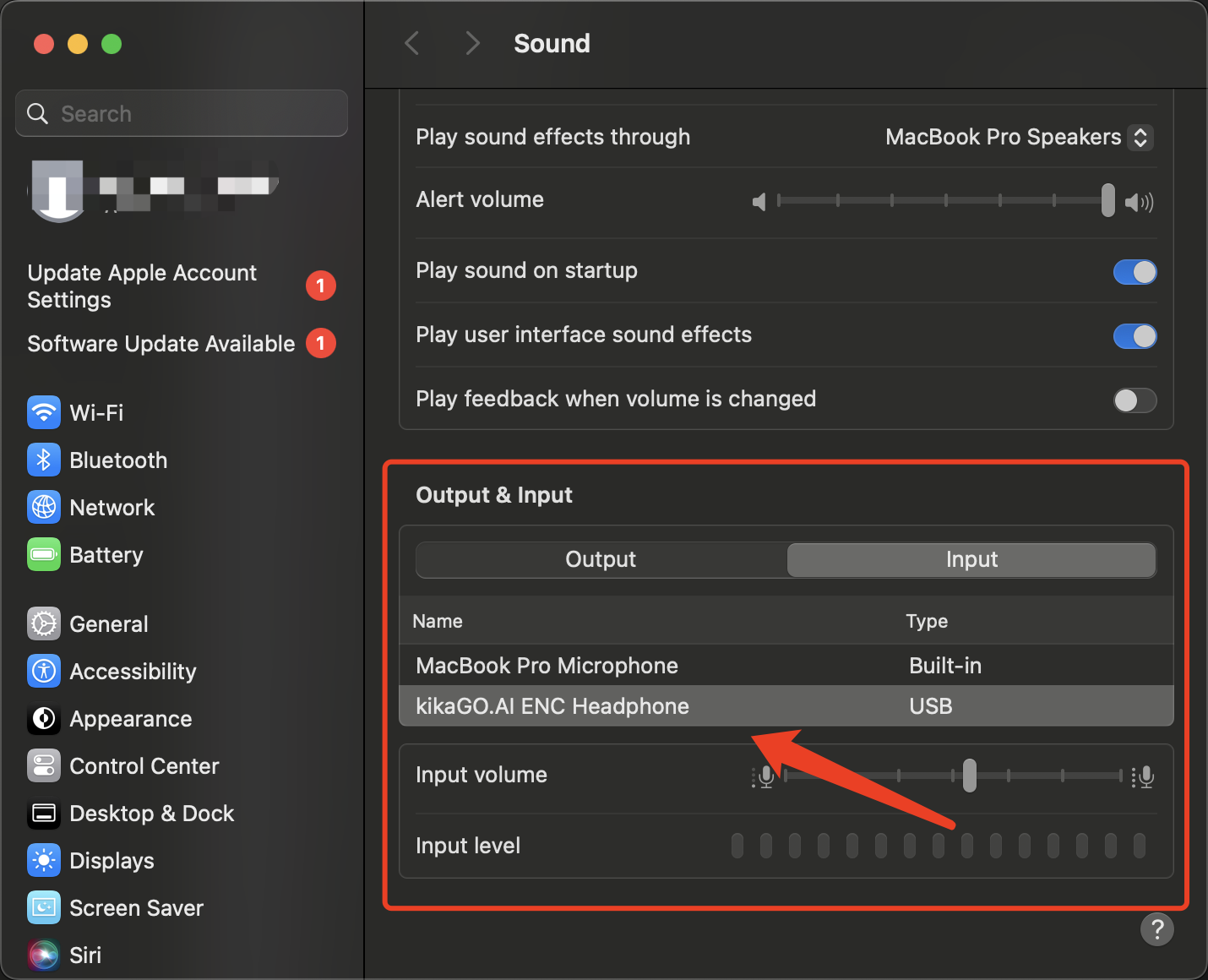
- Start Translation
Begin using the real-time translation feature for seamless communication.

App Interface